Getting Started
Start consuming Humanbased data in minutes.
Overview
The Humanbased Data API lets you access high-quality, human-validated data across live production frontiers (crypto wallets, food science, fashion, robotics, and more).
Base URL: https://api.humanbased.ai/v1
Dashboard: developer.humanbased.ai
New to Humanbased? Follow the Onboarding Guide for a detailed walkthrough with screenshots.
Quickstart
Step 1 — Create an account
Go to developer.humanbased.ai and click Get Started.
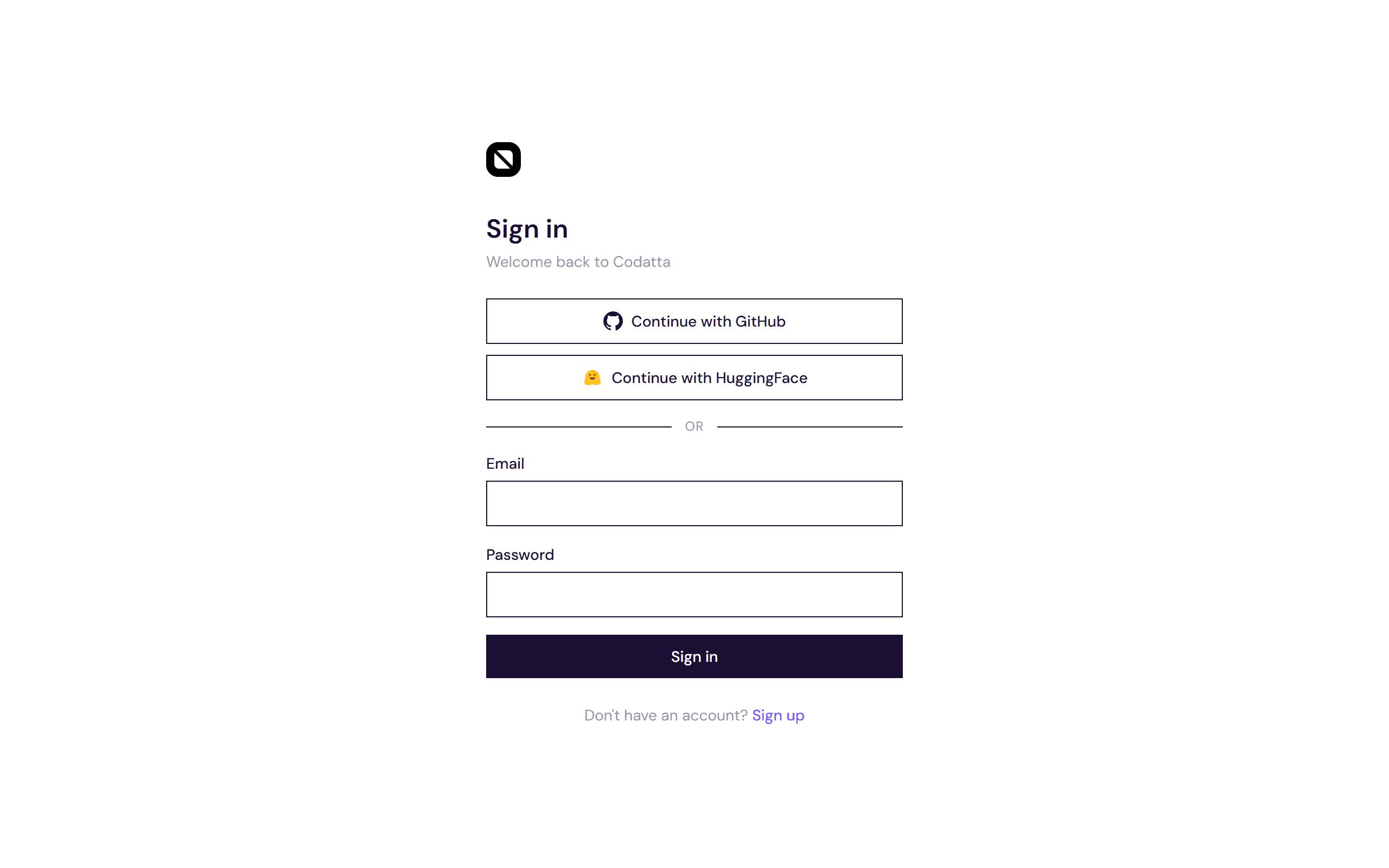
Sign up with GitHub or HuggingFace OAuth for one-click access, or enter your email and click Send verification code. You'll receive a 6-digit OTP from noreply@humanbased.ai — enter it, then set your display name and password.
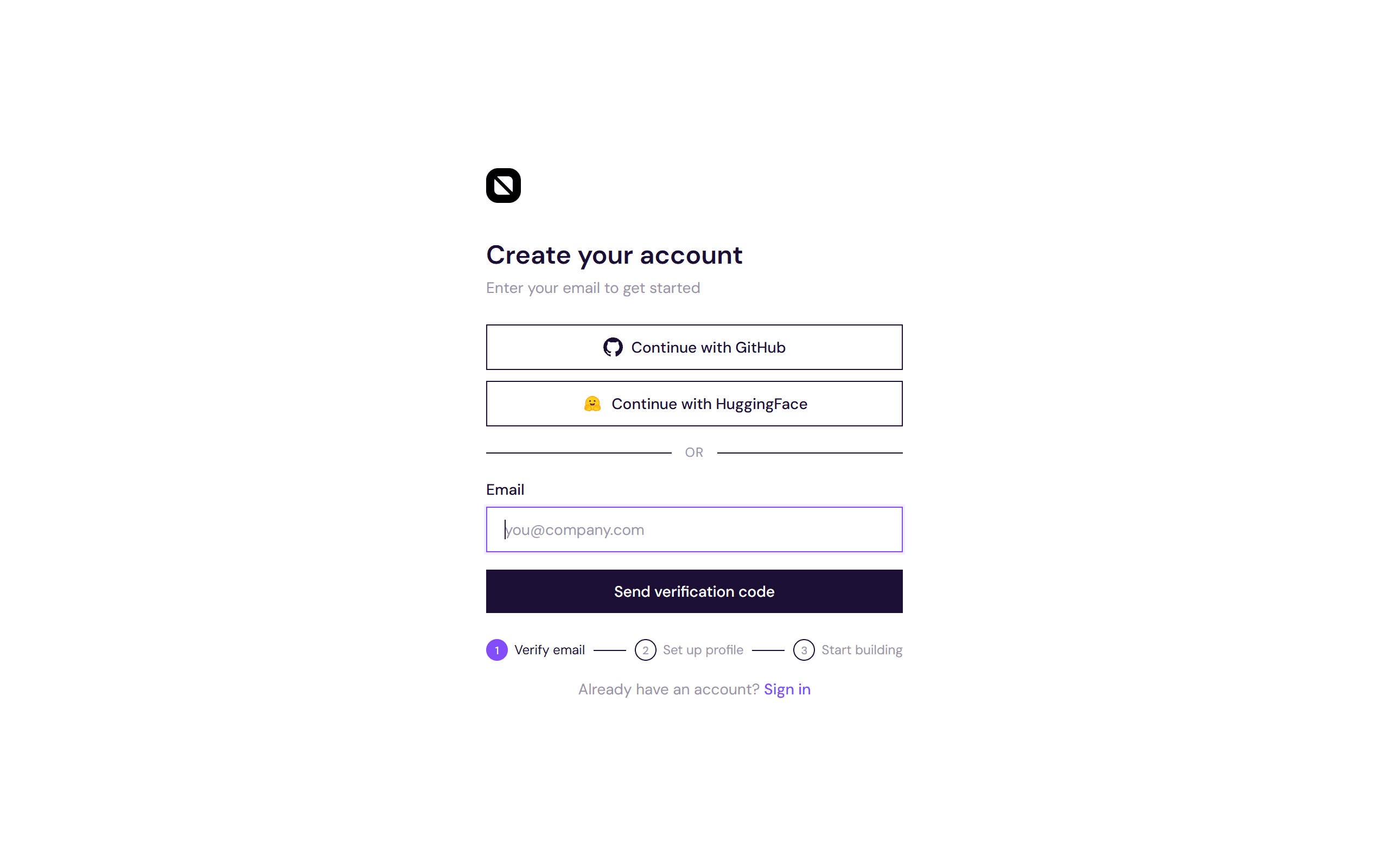
Already have an account? Click Sign in on the landing page instead.
Step 2 — Set up your organization
After signing up you'll be guided through a 3-step onboarding wizard:
- Create your organization — enter a name and slug (e.g.
acme-labs). The slug is auto-generated and checked for availability in real time. You can Skip this step and create an org later from Settings. - Invite team members (optional) — add colleagues by email, or click Do this later to skip.
- Get started — choose your next step: browse datasets or create your first API key.
No API key is created automatically during onboarding. You create keys from the API Keys page with full control over naming, expiry, and scoped subscriptions.
Step 3 — Explore the dashboard
Once onboarding is complete you land on the Dashboard Overview. This is your control center for monitoring data arrivals, reviewing submissions, and managing your account.
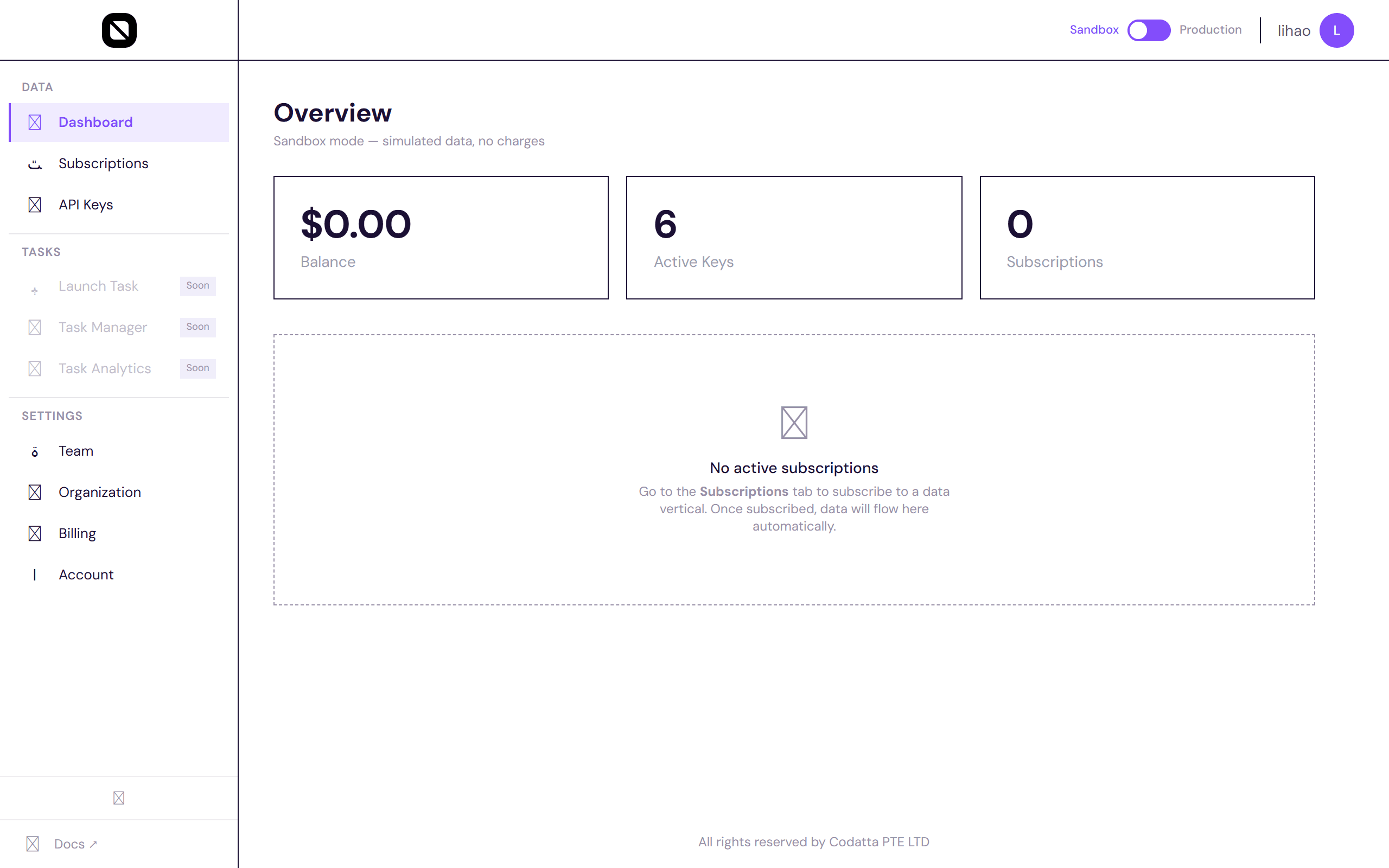
The sidebar gives you access to:
| Section | What it does |
|---|---|
| Dashboard | Live data stream, adoption/dispute actions, stat cards |
| Subscriptions | Browse and subscribe to data sources |
| API Keys | Create, rotate, and revoke keys |
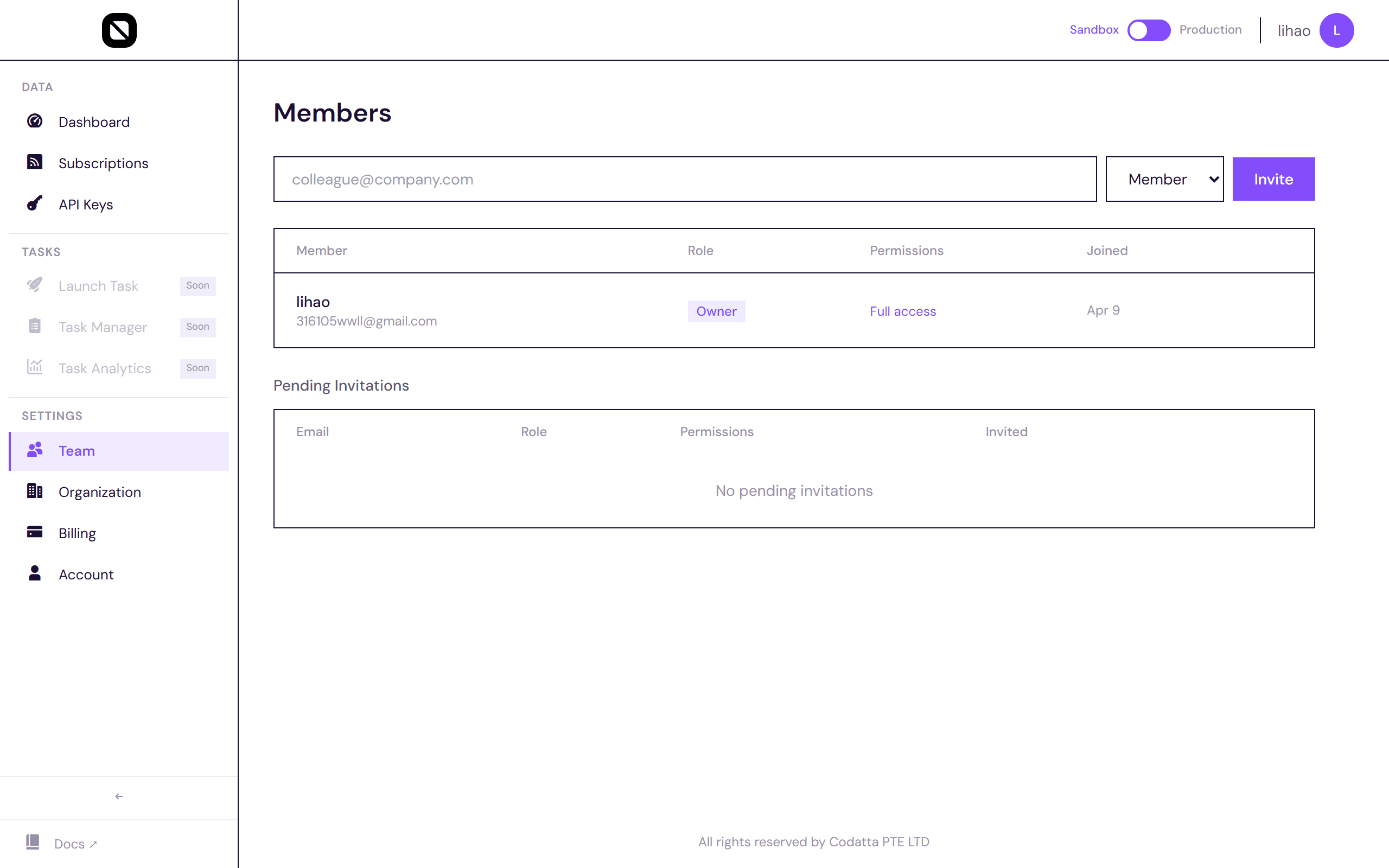
| Team | Invite members, manage roles and permissions |
| Organization | Logo, name, domain settings |
| Billing | Add funds, view balance and transaction history |
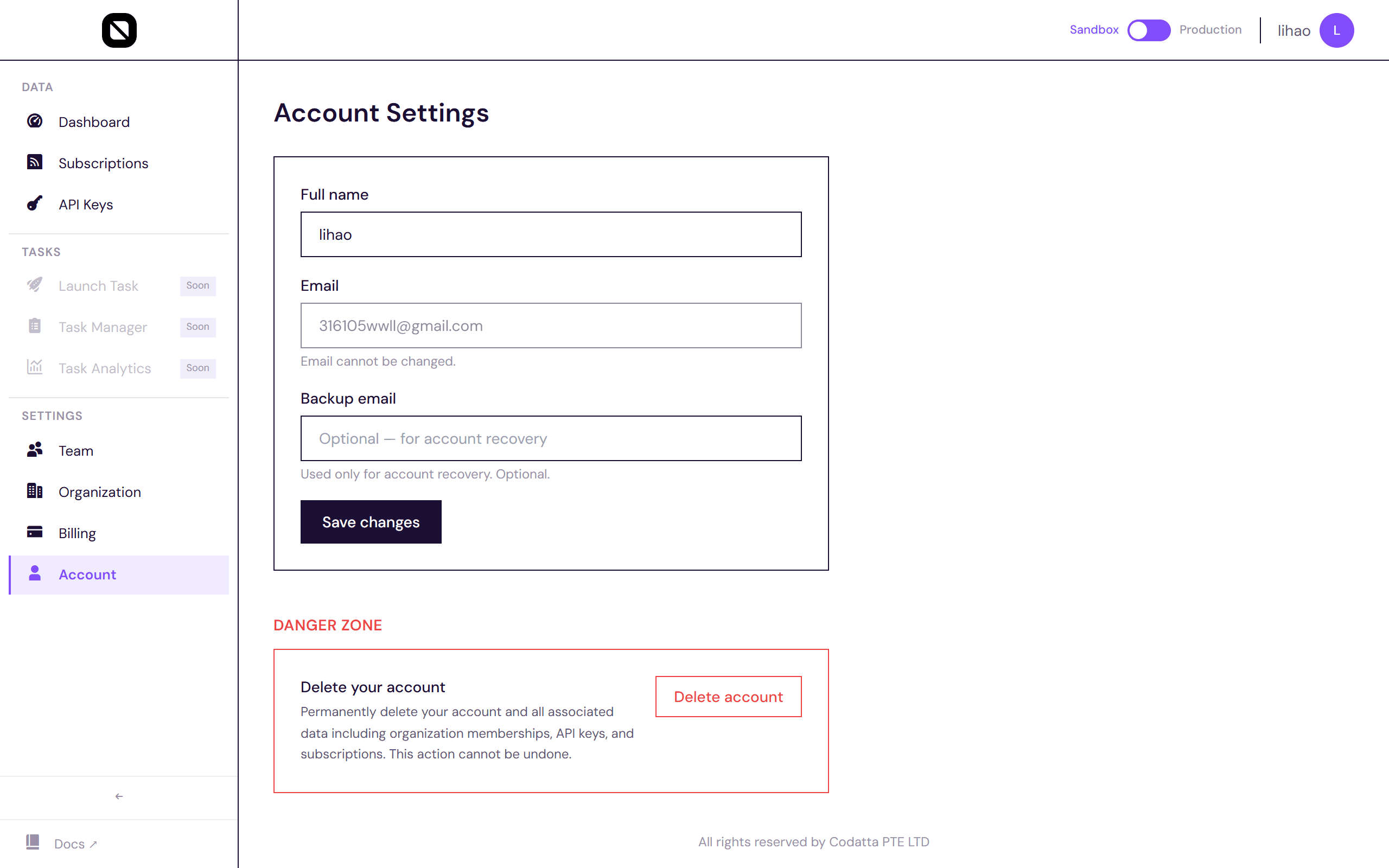
| Account | Edit your profile |
Use the Sandbox / Production toggle in the top-right to switch between test data and live data.
Step 4 — Subscribe to a data source
Navigate to the Subscriptions page to browse available frontiers.
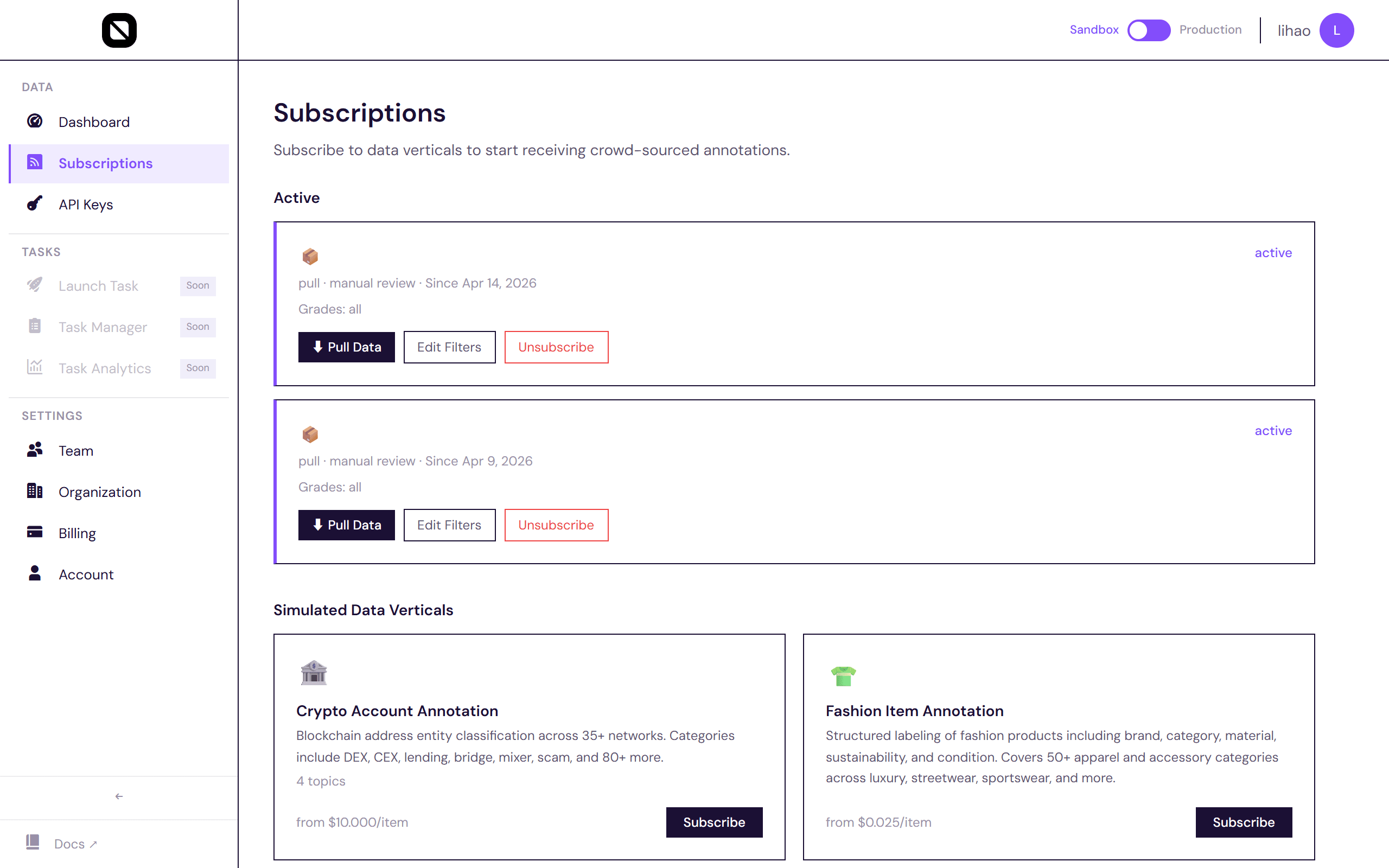
Switch to Production mode and browse available data frontiers. Each card shows the frontier name, description, tags, task count, and total submissions.
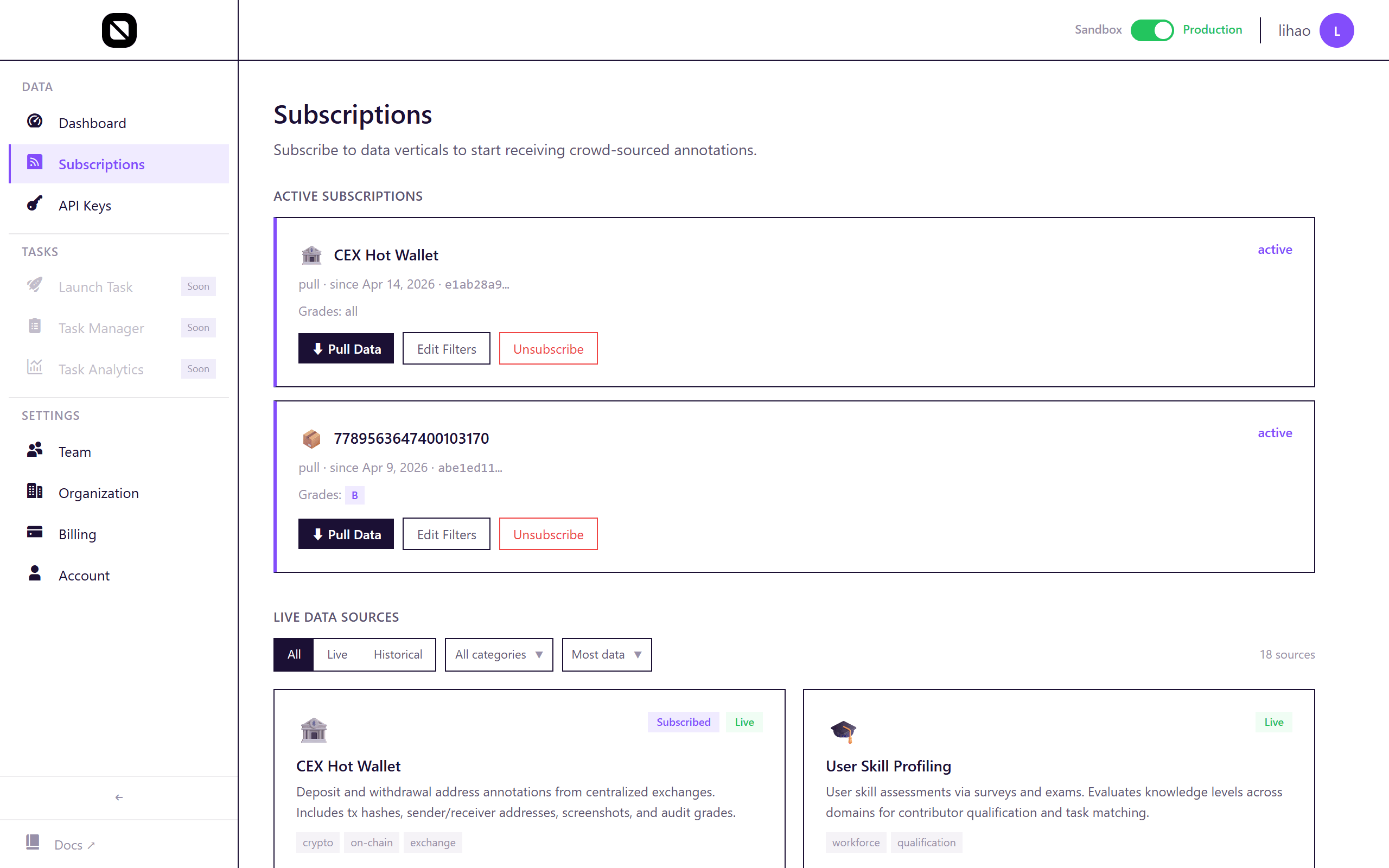
Use the Live / Historical toggle and category tags to filter. Click Subscribe on a frontier and accept the data usage agreement to activate it. Once subscribed, you'll receive a subscription_id needed for API pulls.
Step 5 — Create an API key
Go to the API Keys page and click + Create API Key.
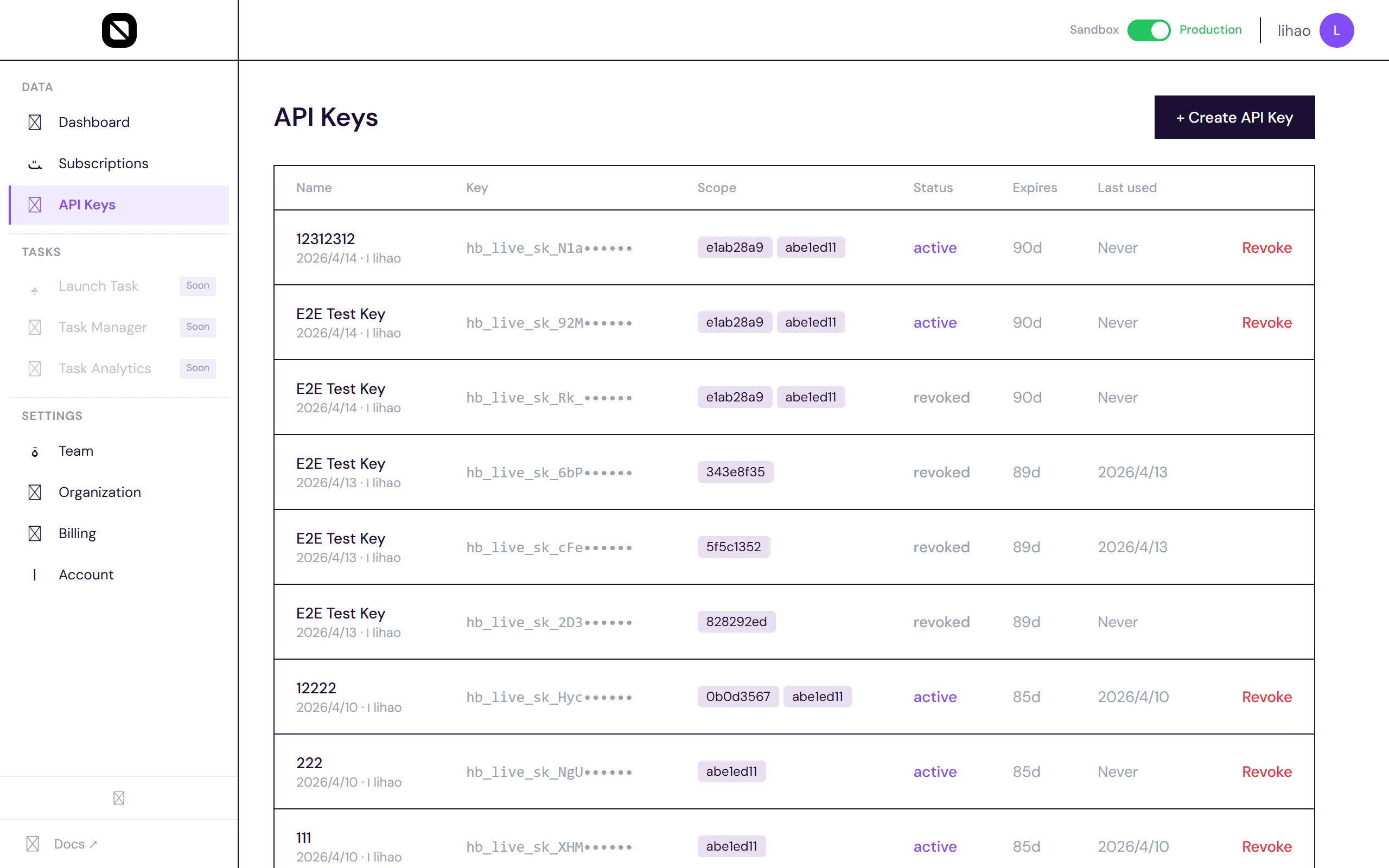
Choose a name, select which subscriptions the key can access, and set an expiration (7 days, 30 days, 90 days, 1 year, or never). Copy the key immediately — it won't be shown again.
Your API key looks like this:
hb_live_sk_aAIN6Xw-VdPiwW2wX-I2DBaMs31gBjpkImportant: The full key is only shown once. Store it in a secrets manager or
.envfile.
You can create multiple keys for different environments and revoke any key at any time from this page.
Step 6 — Pull data via API
With your subscription_id and API key, you can now pull live data:
curl -s "https://api.humanbased.ai/v1/live/pull?subscription_id=YOUR_SUB_ID&limit=10" \
  -H "Authorization: Bearer hb_live_sk_your_key_here"
Response:
{
  "data": [
    {
      "submission_id": "2025072807585000100824",
      "task_id": "8114279515800107934",
      "frontier_id": "8114254168500106625",
      "data": {
        "type": "withdraw",
        "images": [{ "url": "https://file.b18a.io/...", "hash": "57aa81..." }],
        "source": "binance",
        "network": "bsc",
        "currency": "bnb",
        "exchange": "okx"
      },
      "quality_score": 0.97,
      "quality_grade": "S",
      "created_at": "2025-07-28T07:58:51"
    }
  ],
  "next_cursor": "2025072807585000100824",
  "has_more": true,
  "count": 10
}
Use cursor for pagination — pass the next_cursor value to resume from where you left off:
curl -s "https://api.humanbased.ai/v1/live/pull?subscription_id=YOUR_SUB_ID&limit=50&cursor=2025072807585000100824" \
  -H "Authorization: Bearer hb_live_sk_your_key_here"
Step 7 — Review submissions
After pulling data, you can provide feedback on each submission:
Accept a submission (adopt):
curl -X POST "https://api.humanbased.ai/v1/live/items/SUBMISSION_ID/adopt" \
  -H "Authorization: Bearer hb_live_sk_your_key_here" \
  -H "Content-Type: application/json" \
  -d '{"subscription_id": "YOUR_SUB_ID"}'
Flag for re-review (dispute):
curl -X POST "https://api.humanbased.ai/v1/live/items/SUBMISSION_ID/dispute" \
  -H "Authorization: Bearer hb_live_sk_your_key_here" \
  -H "Content-Type: application/json" \
  -d '{"subscription_id": "YOUR_SUB_ID", "reason": "Incorrect label"}'
You can also adopt and dispute directly from the Dashboard Overview live stream in the UI.
Step 8 — Add funds (optional)
Go to the Billing page to add credits to your account.
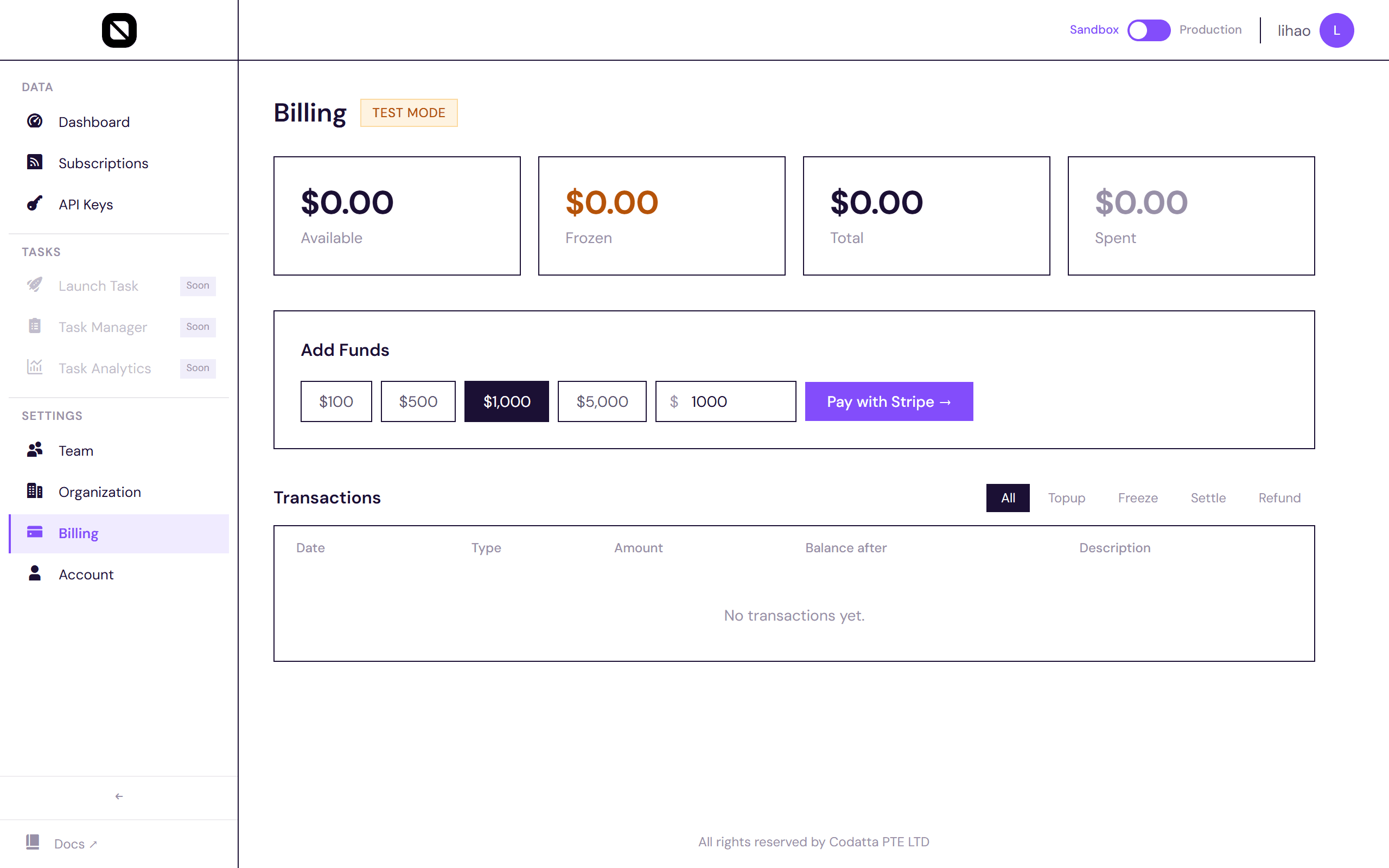
Pick a preset amount ($100, $500, $1,000, $5,000) or enter a custom value, then click Pay with Stripe. Your balance updates instantly after payment. The Transactions table shows a full ledger of top-ups, freezes, settlements, and refunds.
Settings
Organization
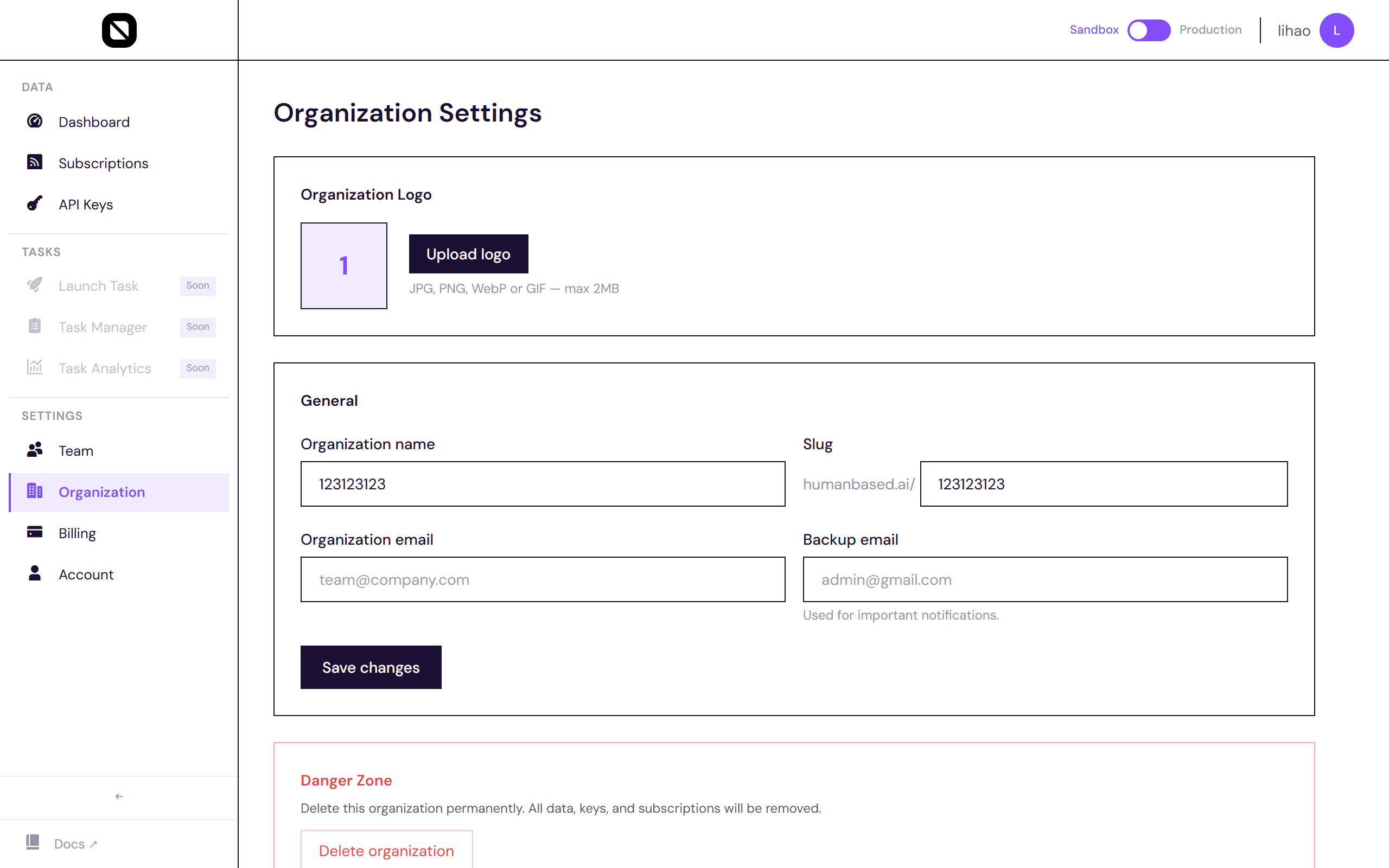
Update your org name, URL slug, billing email, and logo from Settings → Organization.
Team Members
Invite colleagues from Settings → Team. Assign each member a role and fine-grained permissions:
| Permission | What it allows |
|---|---|
data.read | Pull and view data items |
subscriptions.manage | Subscribe and unsubscribe from frontiers |
members.invite | Send team invitations |
keys.manage | Create and revoke API keys |
billing.manage | Add funds and view billing history |
Account
Update your display name and email, or delete your account from Settings → Account.
Using the CLI
As an alternative to curl, install the Humanbased CLI:
npm install -g @humanbased/cli
hb auth set-key hb_live_sk_your_key_here
hb auth whoami
4. Browse live data sources
hb frontiers listOr via API:
curl https://api.humanbased.ai/v1/frontiers5. Subscribe & pull data
Subscribe to a frontier in the dashboard (Subscriptions tab), then pull live production data:
# Pull with cursor-based pagination
hb live pull <subscription-id> --limit 100

# Incremental pull (resume from last position)
hb live pull <subscription-id> --cursor <next_cursor>
Or via API:
curl -s "https://api.humanbased.ai/v1/live/pull?subscription_id=<id>&limit=50" \
  -H "Authorization: Bearer hb_live_sk_your_key_here"
6. Review submissions
# Accept a submission
hb live adopt <subscription-id> <submission-id>

# Flag for re-review
hb live dispute <subscription-id> <submission-id>
Two data modes
The platform supports two data modes:
- Production — Live data from real frontiers (CEX Hot Wallet, Food Science, Robotics, etc.). Uses
hb frontiersandhb livecommands. - Simulation — Sandboxed test data from simulated verticals. Uses
hb verticalsandhb datacommands.
Switch between modes in the dashboard using the Production/Sandbox toggle.