Onboarding Guide
Step-by-step walkthrough from account creation to your first data pull.
User Journey Overview
Register Account -> Create Organization -> Subscribe to Data -> Pull Data via APITime to first data pull: ~5 minutes.
Organization creation is optional during signup — you can skip it and set up your org later from Settings → Organization.
Step 1: Register Your Account
1a. Get Started
Visit developer.humanbased.ai and click Get Started. You can also sign up with GitHub or HuggingFace OAuth for one-click access.
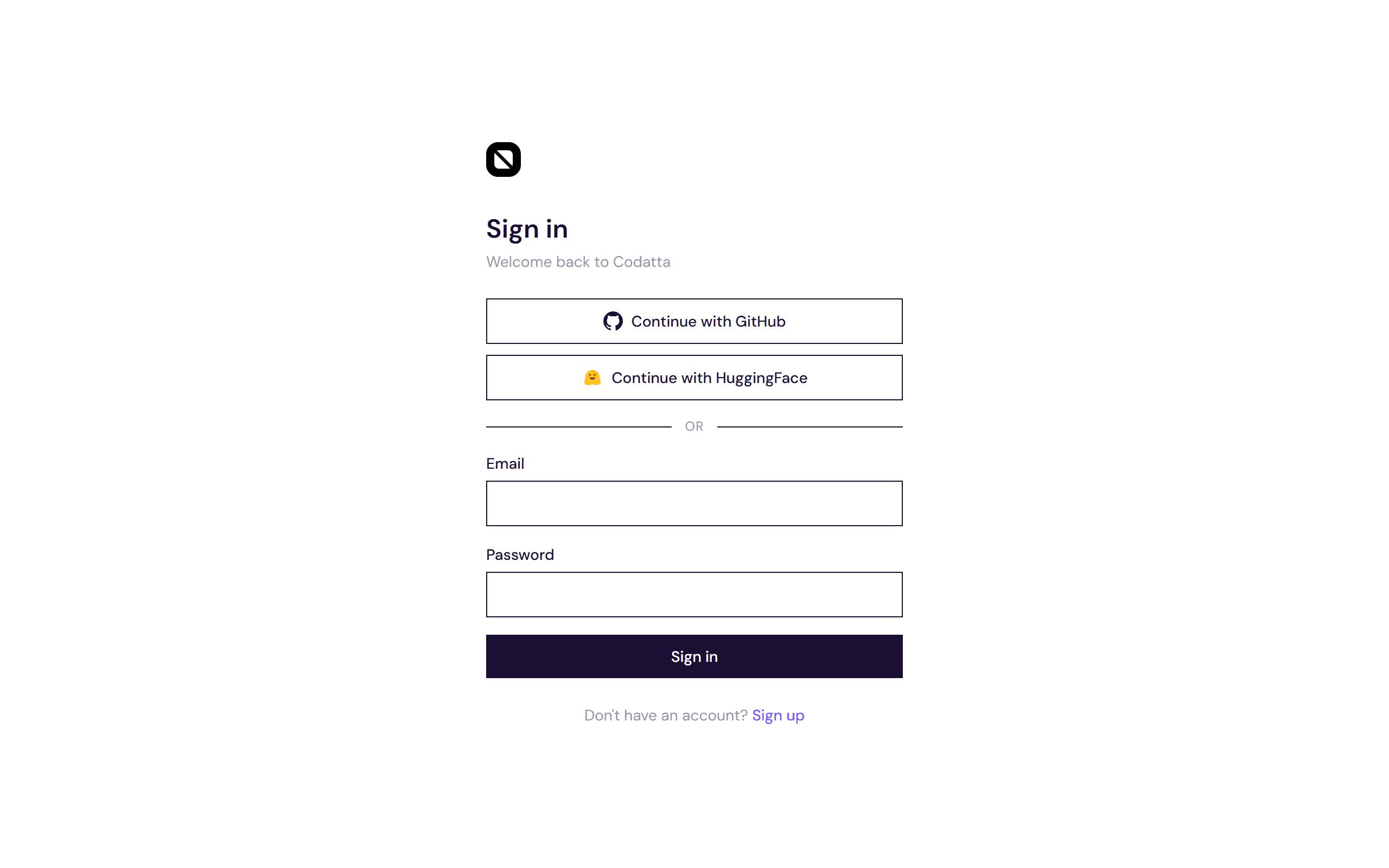
1b. Create Your Account
Enter your company email and click Send verification code. You'll also see OAuth options for GitHub and HuggingFace above the email form.
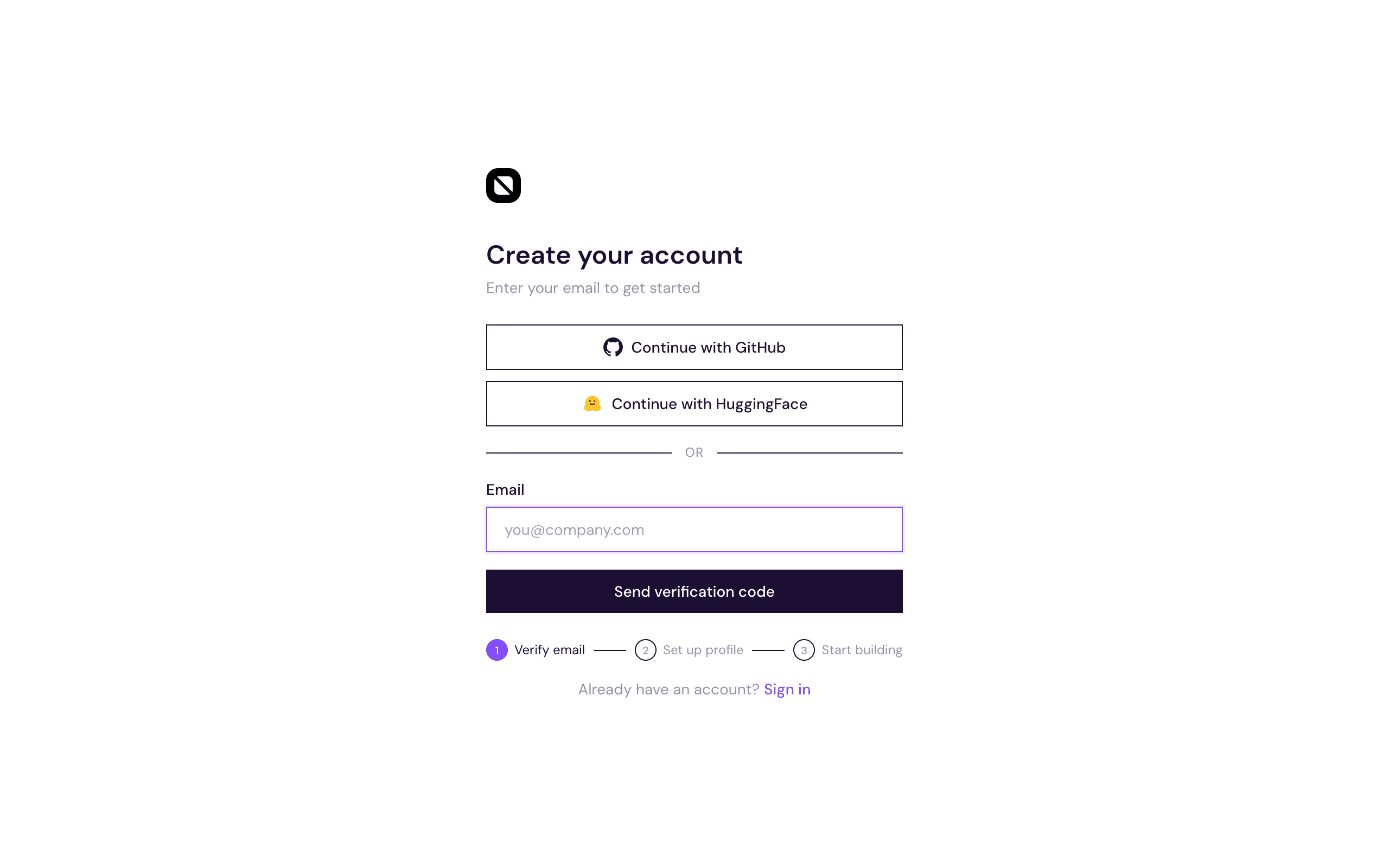
1c. Verify and Set Up Profile
- Check your inbox for a 6-digit OTP from
noreply@humanbased.ai - Enter the code and click Verify
- Set your full name and password — a real-time strength indicator shows whether you've met all requirements (uppercase, lowercase, number, and special character)
- Click Create account
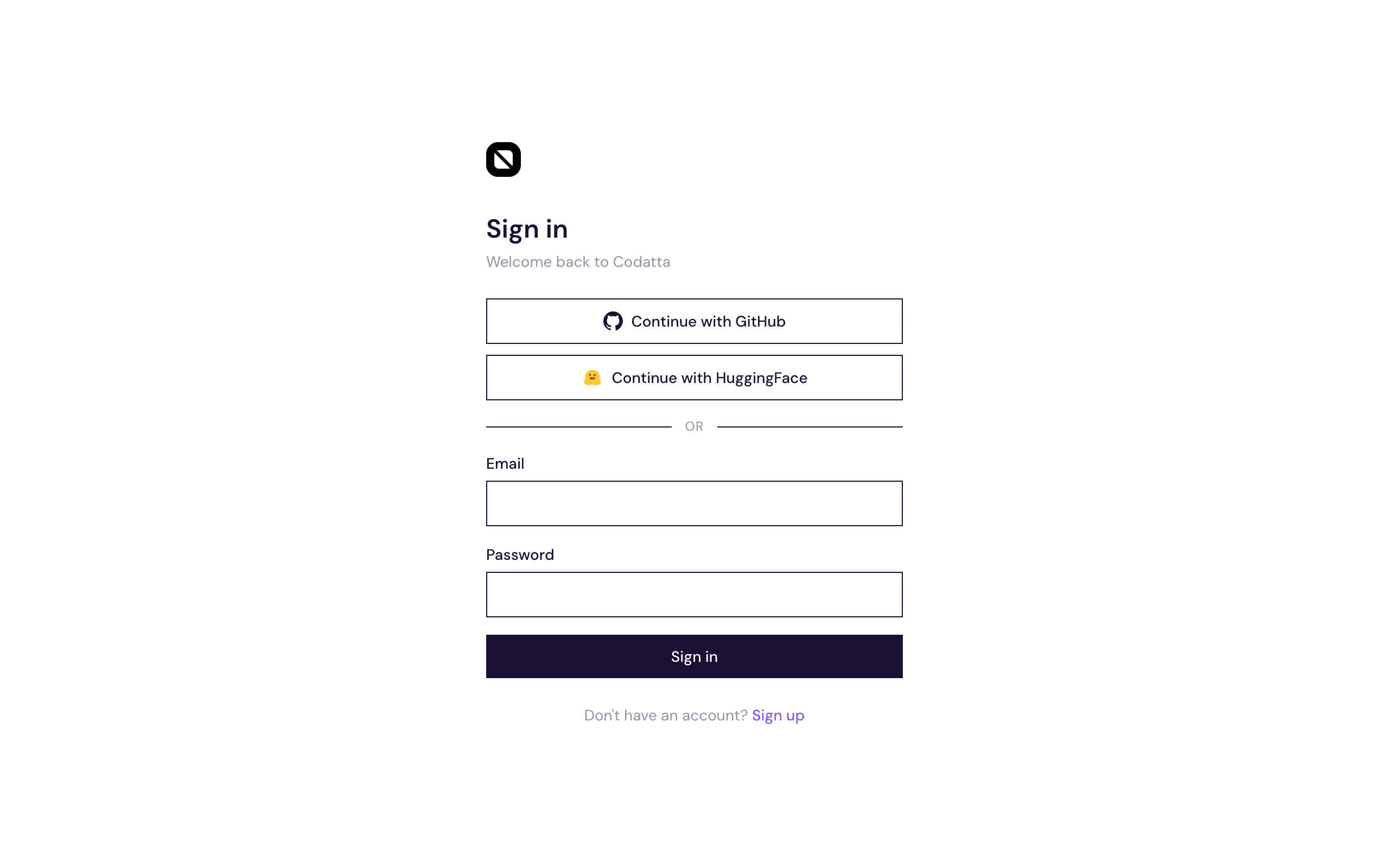
Already have an account? Use the Sign in page instead.
Step 2: Create Your Organization
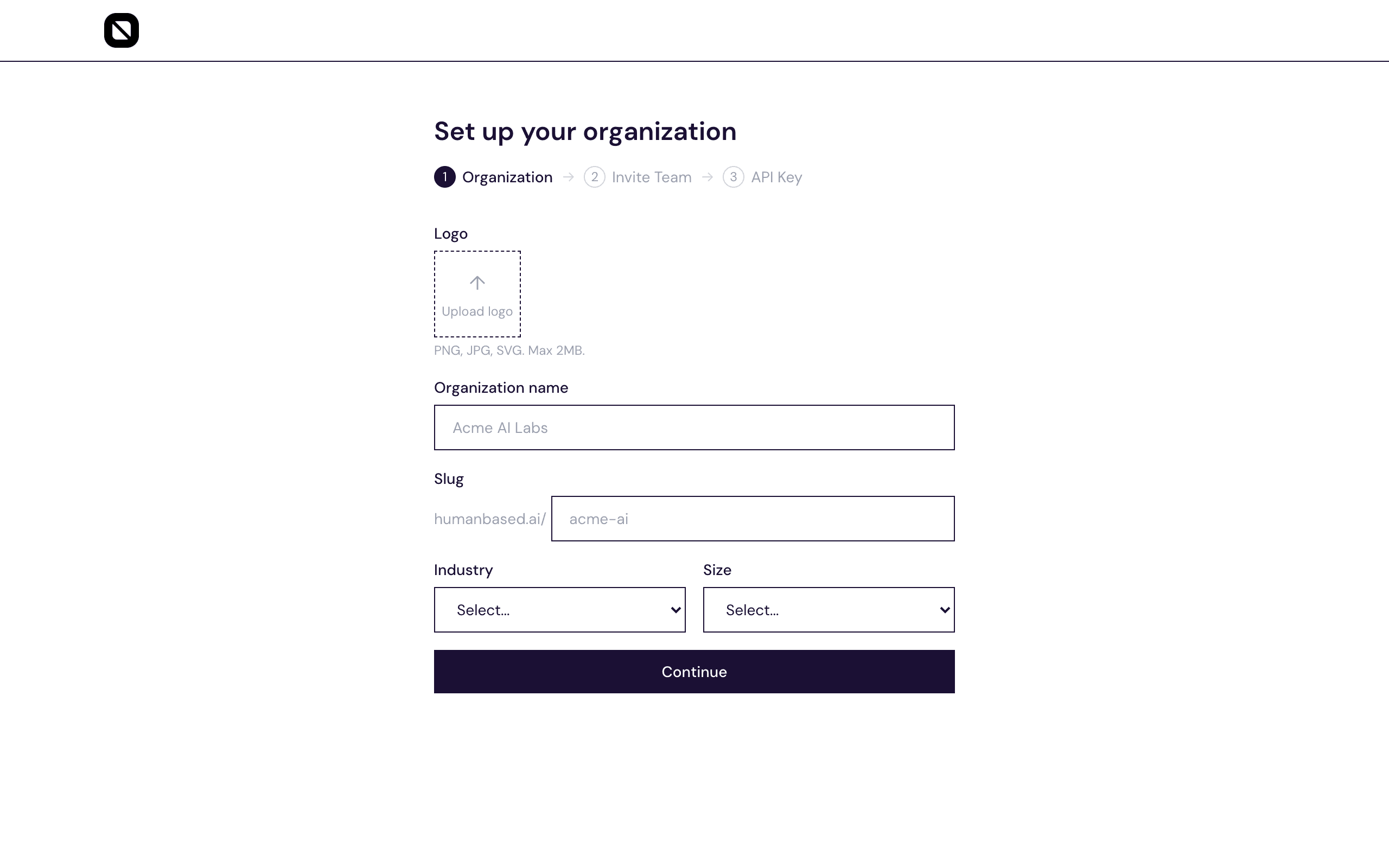
After account creation, you enter a 3-step organization setup wizard. This step is optional — click Skip on the first screen to proceed directly to the dashboard and set up your org later from Settings → Organization.
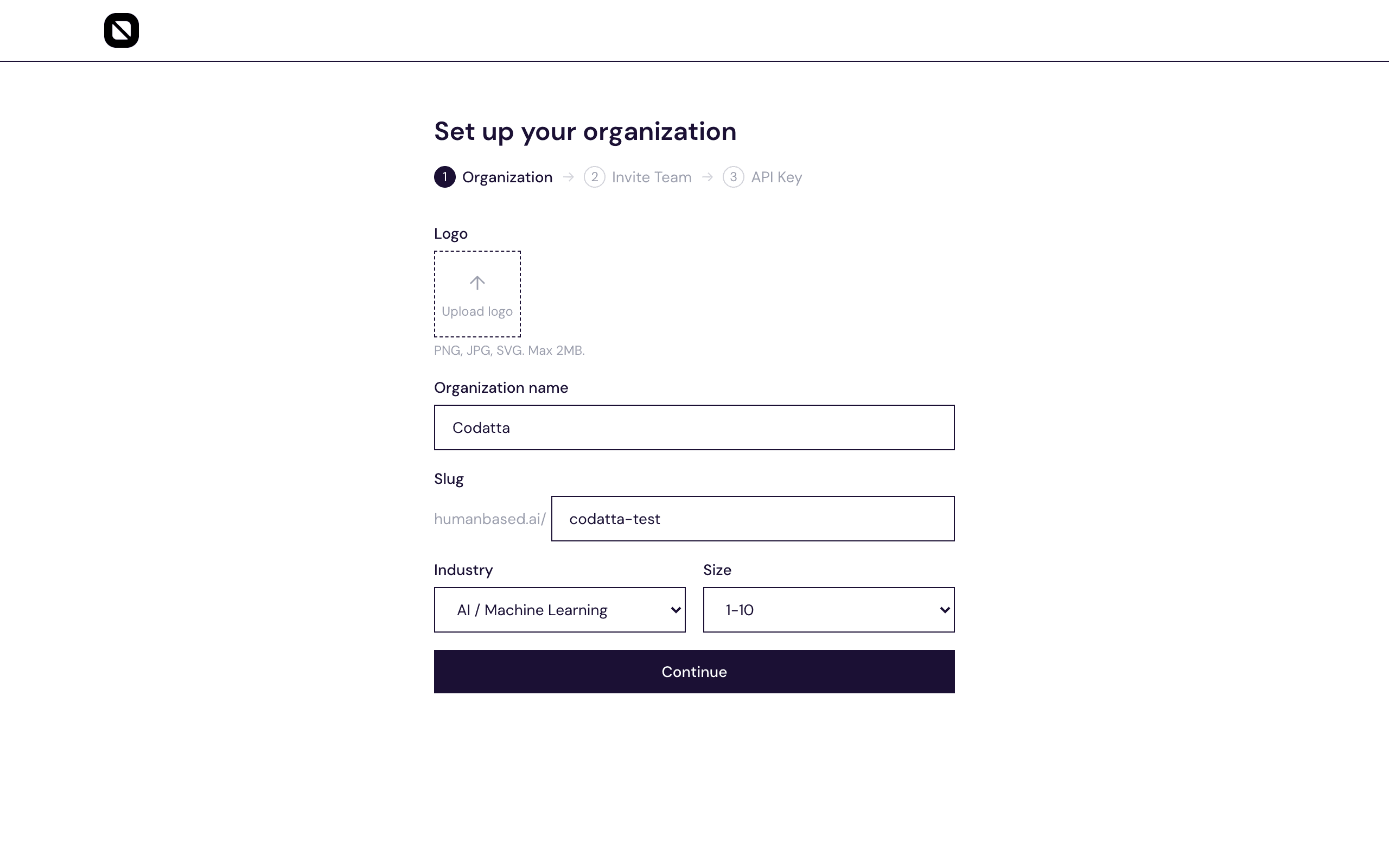
2a. Organization Info
Fill in your organization details and click Continue:
| Field | Description | Example |
|---|---|---|
| Organization name | Your company or team name | Codatta |
| Slug | Auto-generated URL identifier — checked for availability in real time | humanbased.ai/codatta |
| Industry | Select from dropdown | AI / Machine Learning |
| Size | Team size range | 1-10 |
2b. Invite Team Members (optional)
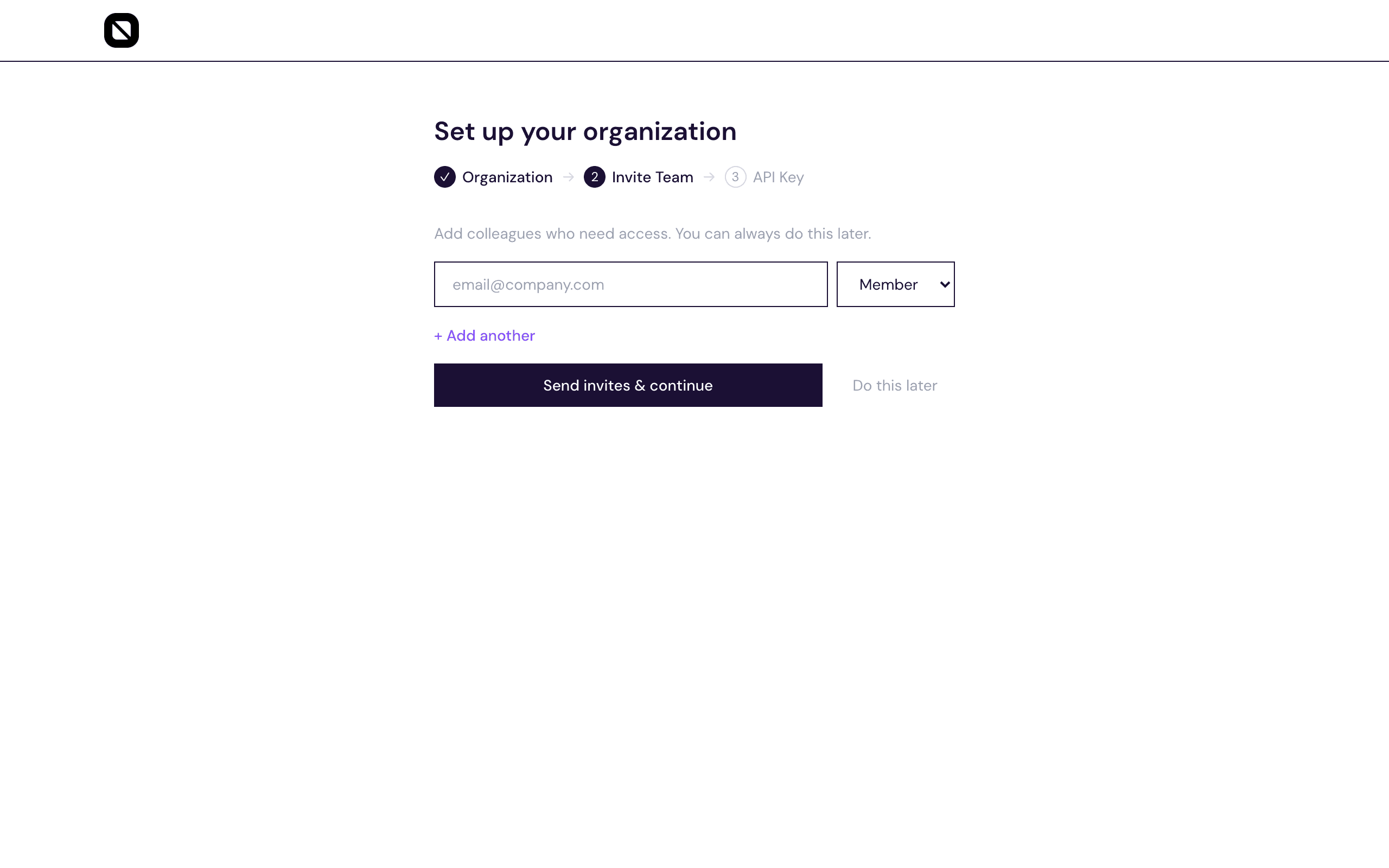
This step is optional — click Do this later to skip it entirely. You can always invite members later via Settings > Team.
If you do invite now, add colleagues by email and assign a role plus fine-grained permissions:
| Role | Default access |
|---|---|
| Owner | Full control — billing, settings, delete org |
| Admin | Manage members, API keys, subscriptions |
| Member | View data, use existing API keys |
Each role can be further customised with individual permission toggles:
| Permission | What it allows |
|---|---|
data.read | Pull and view data items |
subscriptions.manage | Subscribe and unsubscribe from frontiers |
members.invite | Send team invitations |
keys.manage | Create and revoke API keys |
billing.manage | Add funds and view billing history |
2c. Get Started
After setup, you'll see two options for your next step:
- Browse available datasets — go to the Subscriptions page to see what data verticals are available
- Create your first API key — go to the API Keys page to generate a key for authenticating your requests
No API key is created automatically — you create keys on your own terms from the API Keys page, with a name, expiry, and scoped subscriptions that you control.
Step 3: Explore the Dashboard
The dashboard is your central hub — it shows your balance, active API keys, subscription status, and a live data stream.
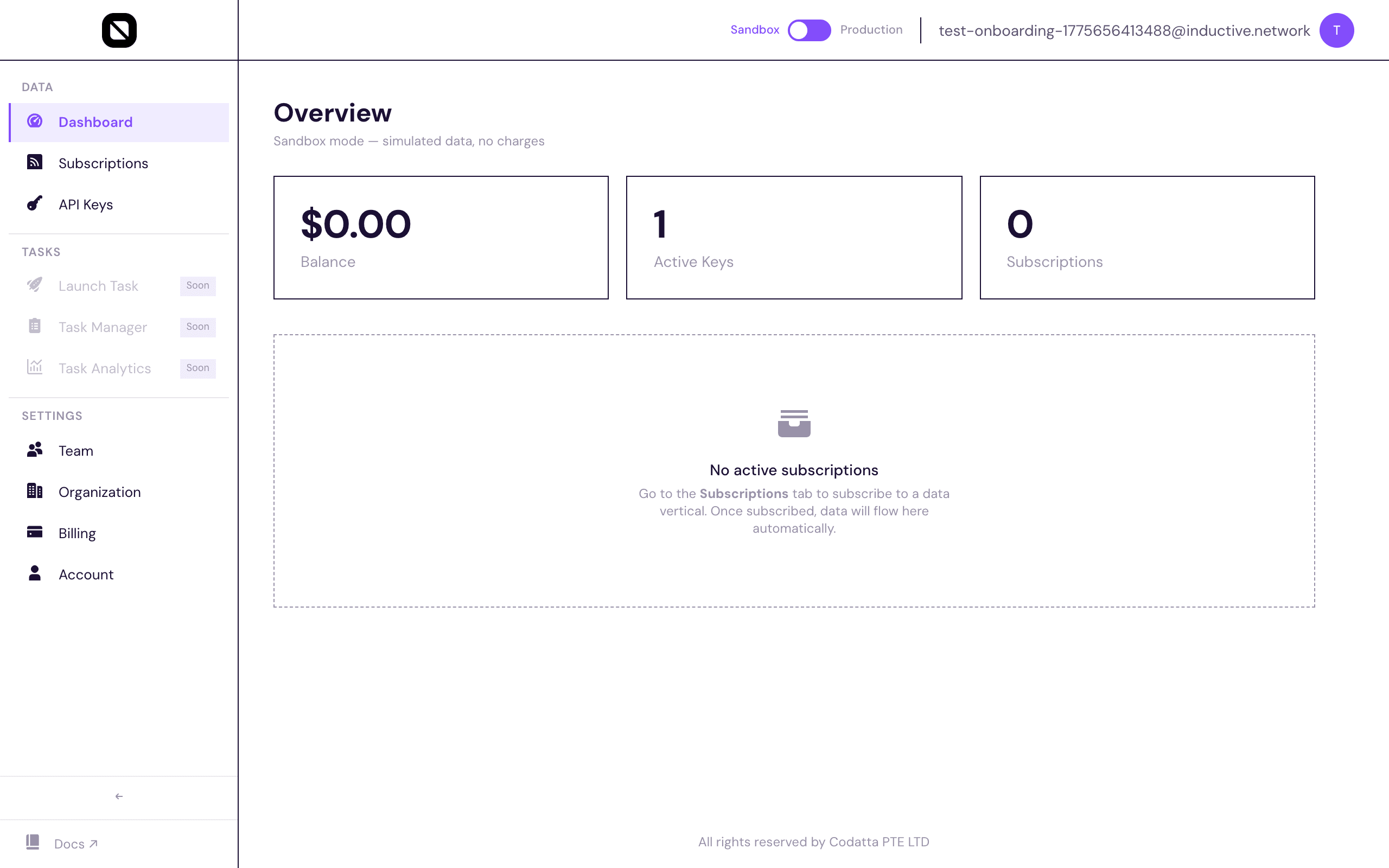
Sidebar Navigation
| Section | Pages |
|---|---|
| Data | Dashboard, Subscriptions, API Keys |
| Tasks | Launch Task, Task Manager, Task Analytics |
| Settings | Team, Organization, Billing, Account |
Sandbox vs. Production
The toggle at the top of every page controls which environment you're working in:
- Sandbox — simulated data, no charges, safe for testing
- Production — real crowd-sourced data, metered billing
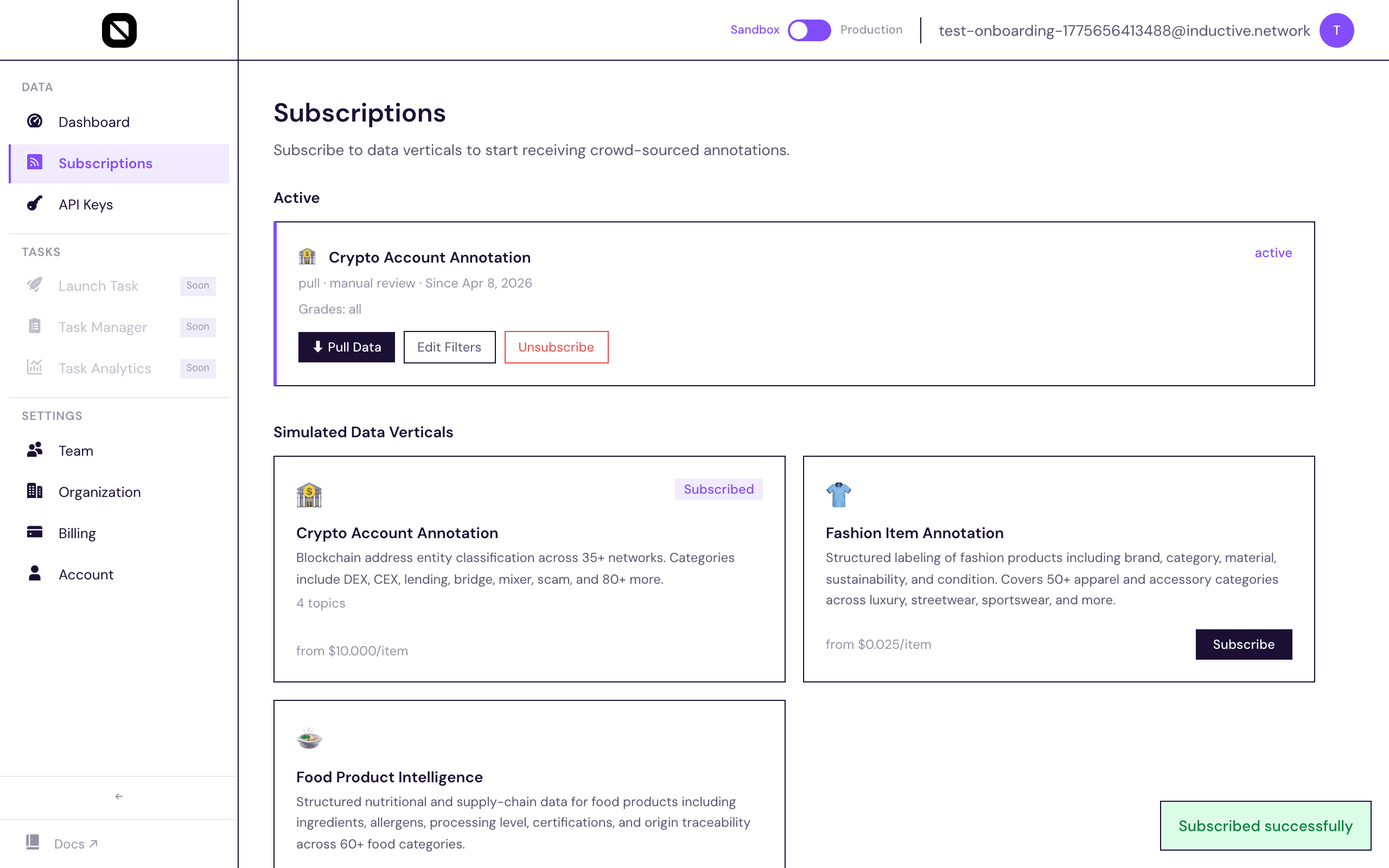
Step 4: Subscribe to Data Sources
You must subscribe to at least one data vertical before your API key can pull data.
4a. Browse Data Frontiers
Navigate to Subscriptions in the sidebar and switch to Production mode. Available data frontiers are displayed as cards.
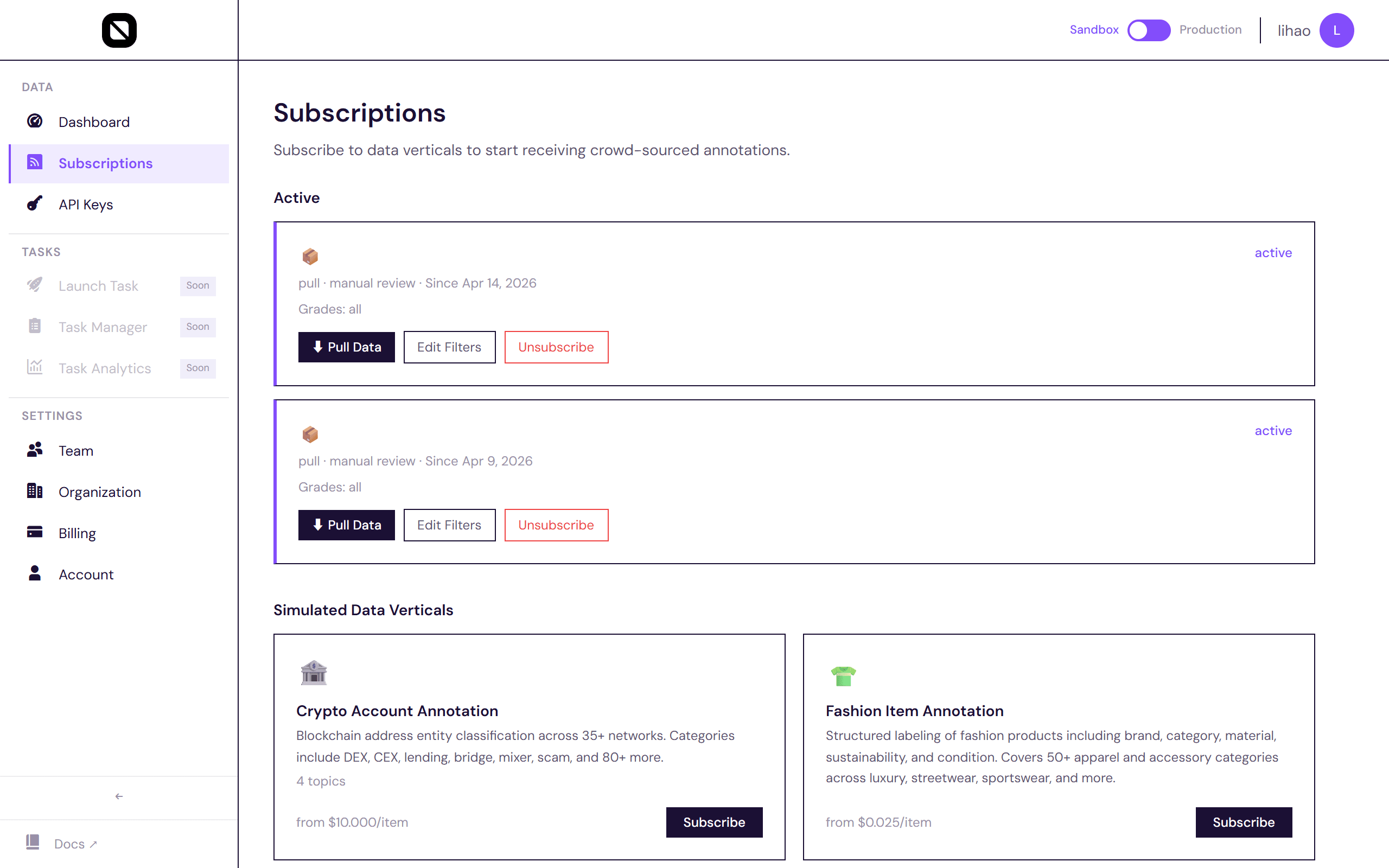
Each frontier card shows:
- Name and description (e.g., CEX Hot Wallet, Food Science)
- Tags (crypto, on-chain, exchange, etc.)
- Task count and total submissions
- Status badge: Live (actively collecting) or Historical
Use the Live / Historical filter and category tags to narrow results.
4b. Subscribe
- Click Subscribe on the frontier you need
- Review and accept the data usage agreement (7-clause terms)
- The subscription activates immediately
Once subscribed, all organization members automatically receive access — no per-user setup needed.
Step 5: Pull Data via API
Using the Dashboard
- On your active subscription card, click Pull Data
- The panel shows your subscription ID, status, and a ready-to-use
curlcommand
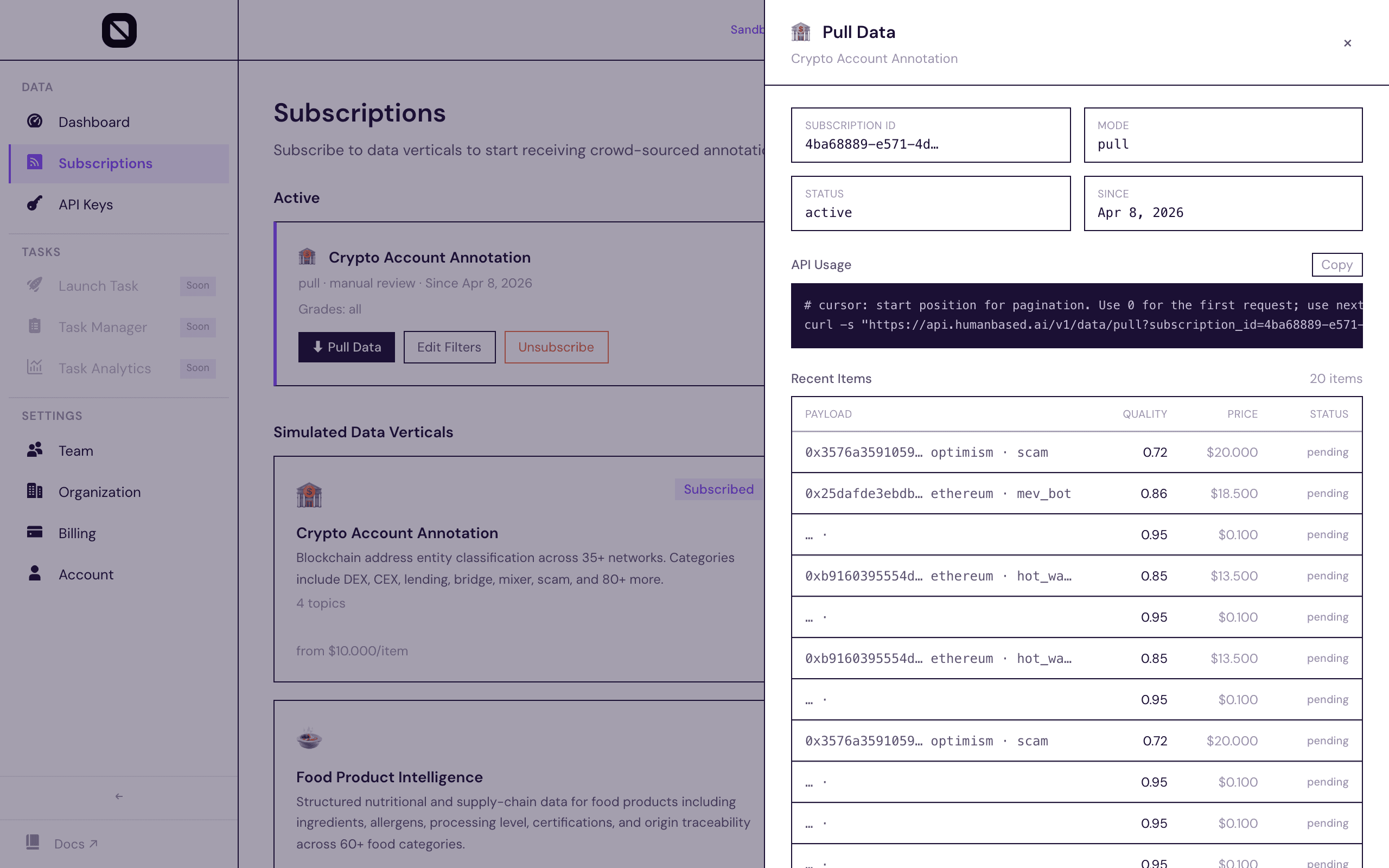
The data table displays recent submissions with:
- DATA — annotation content and metadata
- QUALITY — confidence score (0-1)
- GRADE — quality tier (S, A, B, C, D)
- PRICE — per-record cost
- STATUS — pending / adopted / disputed
Using curl
curl -s "https://api.humanbased.ai/v1/live/pull?subscription_id=YOUR_SUBSCRIPTION_ID&cursor=0" \
     -H "Authorization: Bearer YOUR_API_KEY"
Using the CLI
npm install -g @humanbased/cli
hb auth set-key hb_live_sk_...
hb data pull --subscription YOUR_SUBSCRIPTION_ID --cursor 0
Pagination
cursor=0starts from the earliest records- Increment the cursor to fetch newer batches
- Each response includes the next cursor value
Step 6: Review Submissions
After pulling data, you can provide feedback on each submission.
Accept a submission (adopt):
curl -X POST "https://api.humanbased.ai/v1/live/items/SUBMISSION_ID/adopt" \
  -H "Authorization: Bearer YOUR_API_KEY" \
  -H "Content-Type: application/json" \
  -d '{"subscription_id": "YOUR_SUB_ID"}'
Flag for re-review (dispute):
curl -X POST "https://api.humanbased.ai/v1/live/items/SUBMISSION_ID/dispute" \
  -H "Authorization: Bearer YOUR_API_KEY" \
  -H "Content-Type: application/json" \
  -d '{"subscription_id": "YOUR_SUB_ID", "reason": "Incorrect label"}'
You can also adopt and dispute directly from the Dashboard Overview live stream in the UI. Records arrive as "pending" and are auto-adopted after 48 hours unless disputed.
Managing API Keys
Create additional keys from the API Keys page for different environments or team members.
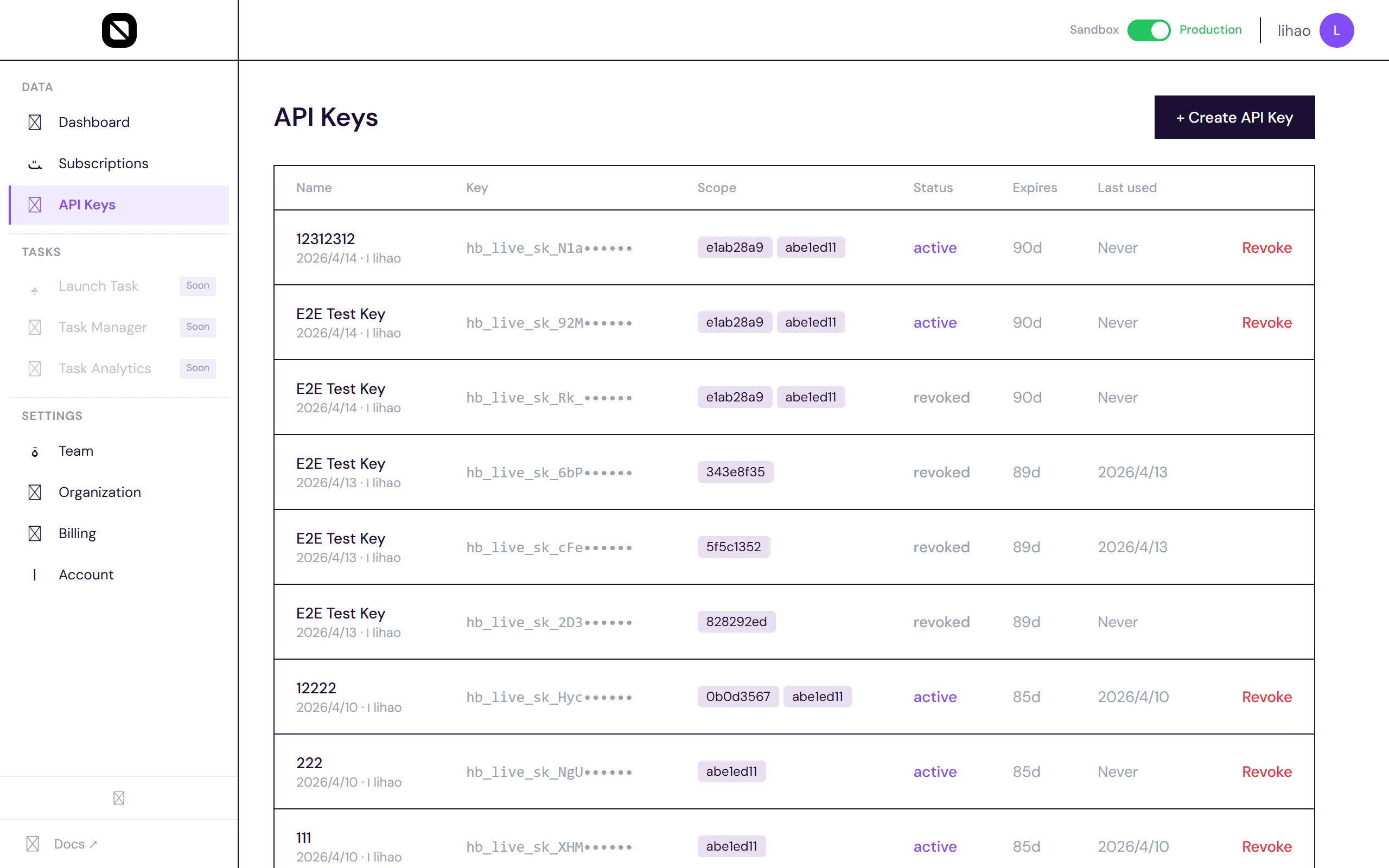
| Property | Details |
|---|---|
| Prefix | hb_live_sk_ (production) or hb_test_sk_ (sandbox) |
| Naming | Label keys by use case (e.g., "prod-pipeline", "dev-testing"). Names must be unique within your org. |
| Scope | Each key must be scoped to at least one subscription |
| Expiry | 7d, 30d, 90d, 1y, or never |
| Revocation | Revoke any key instantly without affecting others |
Settings
Organization
Update your org name, URL slug, billing email, backup email, and logo from Settings → Organization.
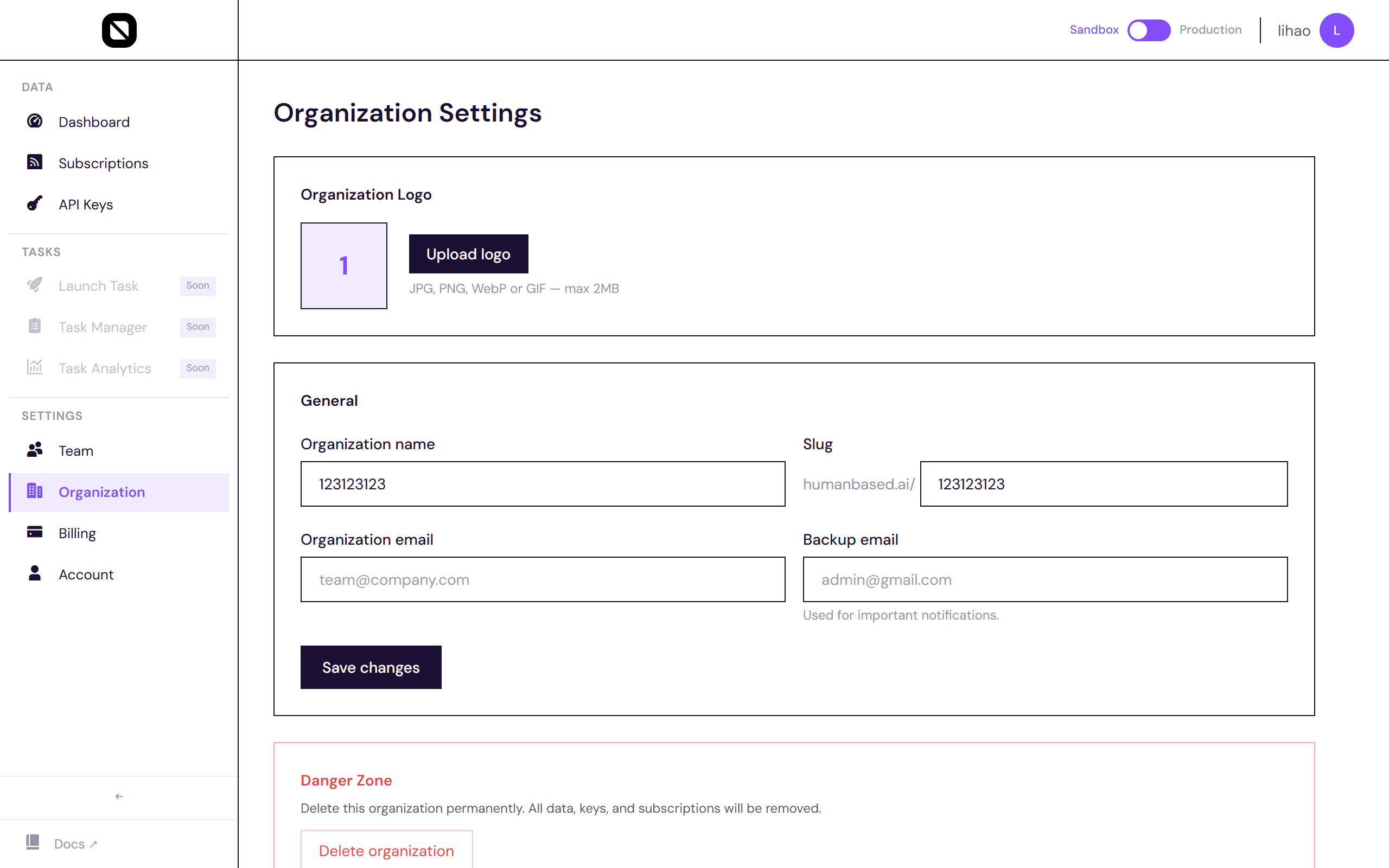
Logo files are uploaded directly to Supabase storage (max 2 MB). Changing the slug updates your org's public URL (humanbased.ai/<slug>).
Team Members
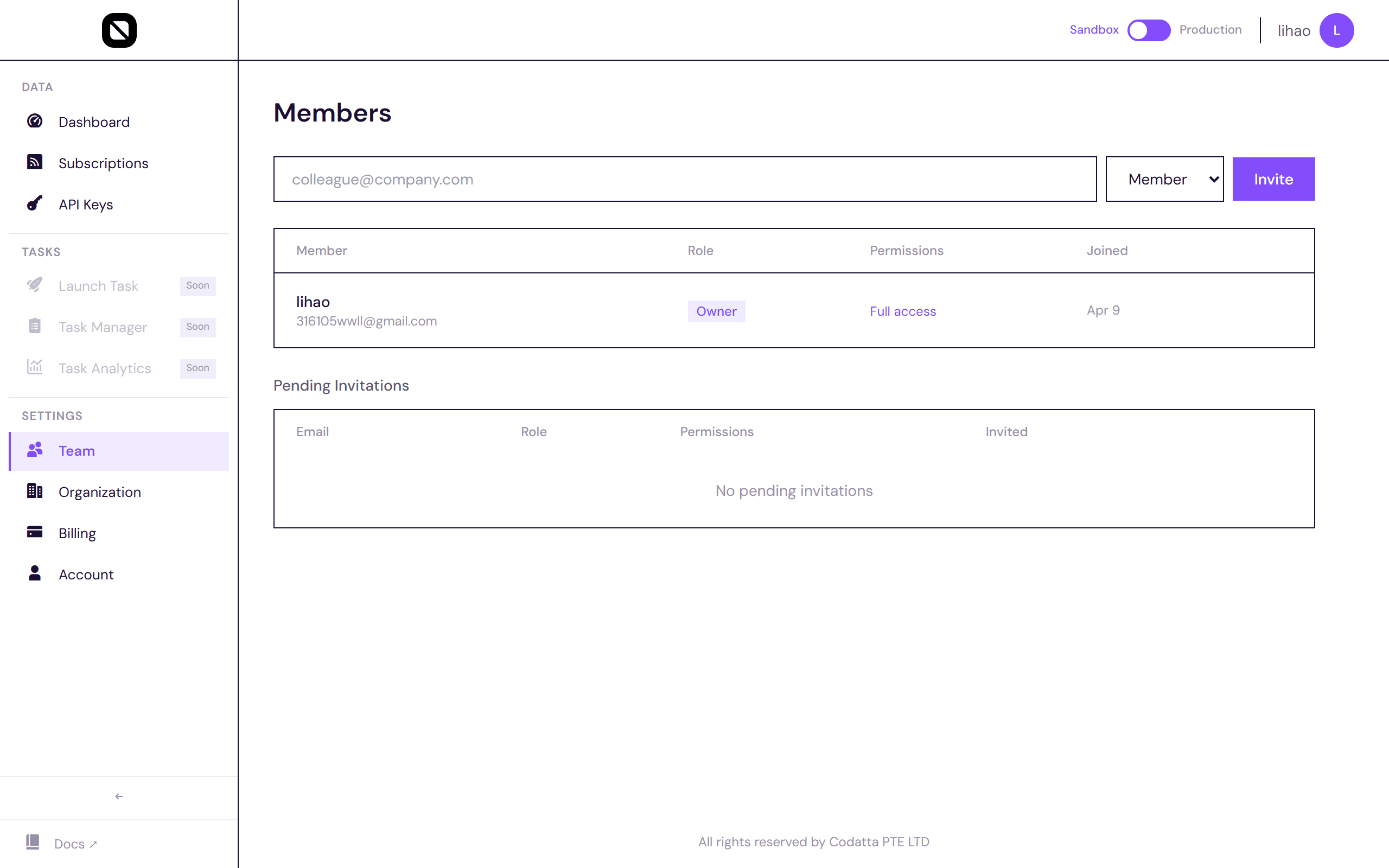
Manage your team from Settings → Team. View all current members with their roles, invite new colleagues by email, and manage pending invitations.
Account
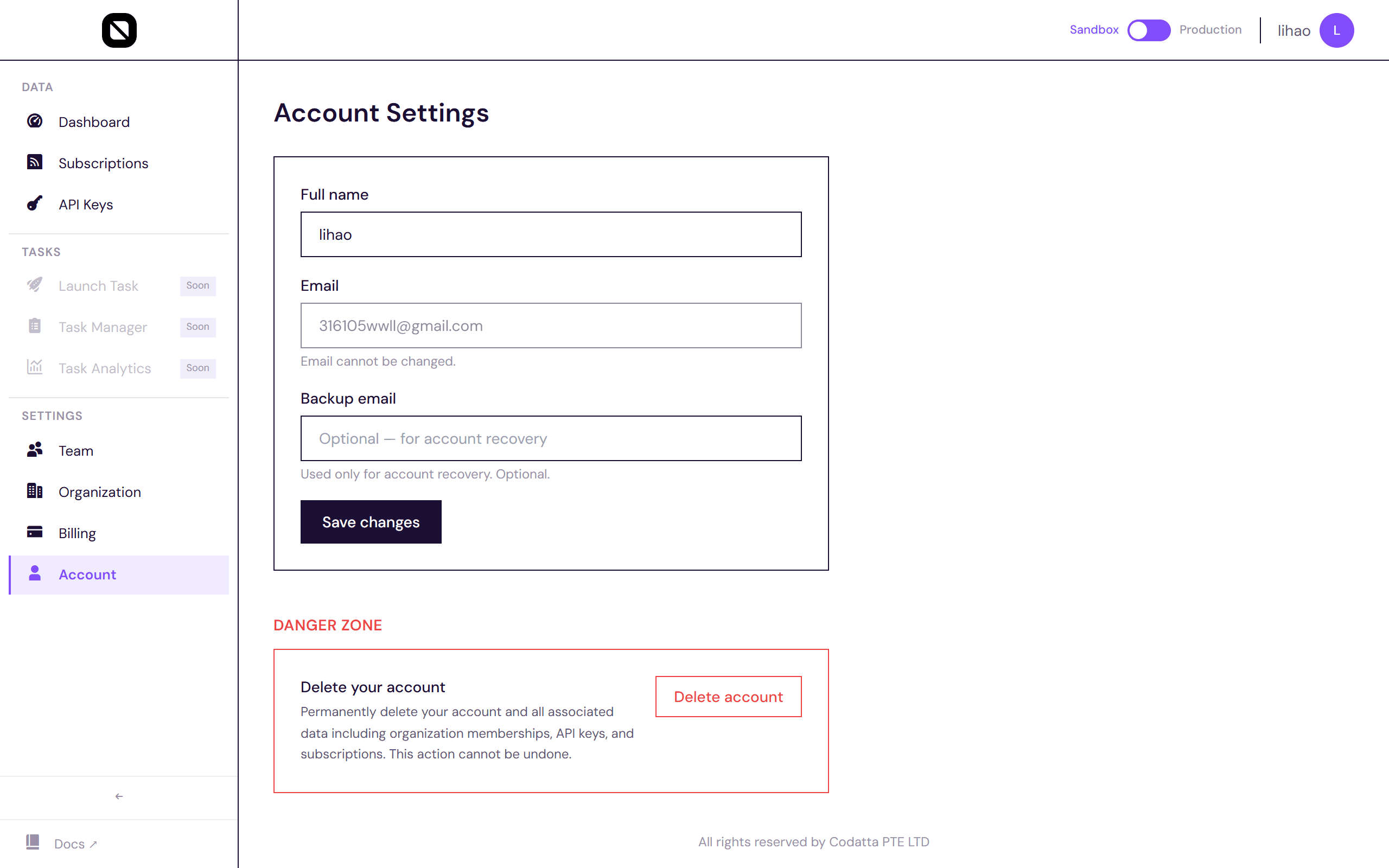
Update your display name and email from Settings → Account. You can also permanently delete your account — this removes all memberships, API keys, and org data in a multi-step process.
Quick Reference
| What | Where |
|---|---|
| Create account | developer.humanbased.ai |
| API documentation | docs.humanbased.ai |
| Manage org & team | Dashboard > Settings > Organization / Team |
| Create API keys | Dashboard > API Keys |
| Subscribe to data | Dashboard > Subscriptions |
| Pull data | Active subscription > Pull Data button |
| CLI reference | npm install -g @humanbased/cli && hb --help |