
Inbox, Account, and Referral
Return from a notification to the source record, maintain account information, and share a Referral link.
Inbox
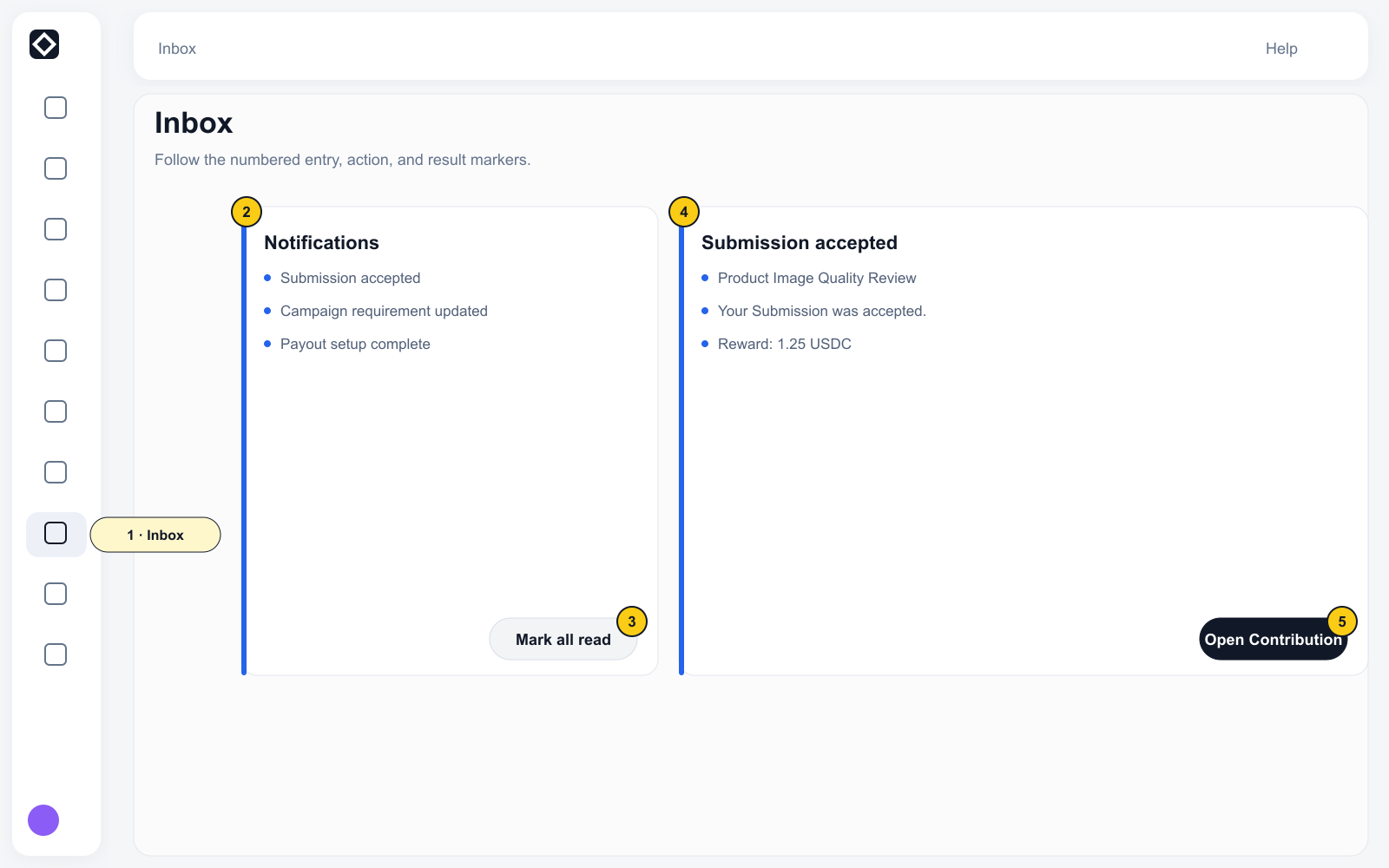
- Open Inbox in the left navigation.
- Use Channel: All messages to select an available channel, or select Mark all read when needed.
- Select a notification and read it in the right panel.
- Use the notification action to open the related Campaign, Submission, or Earnings page.
- Read the latest status on the destination page.
A notification is an entry point. The destination page is the source of the current business status.
Account and the profile menu
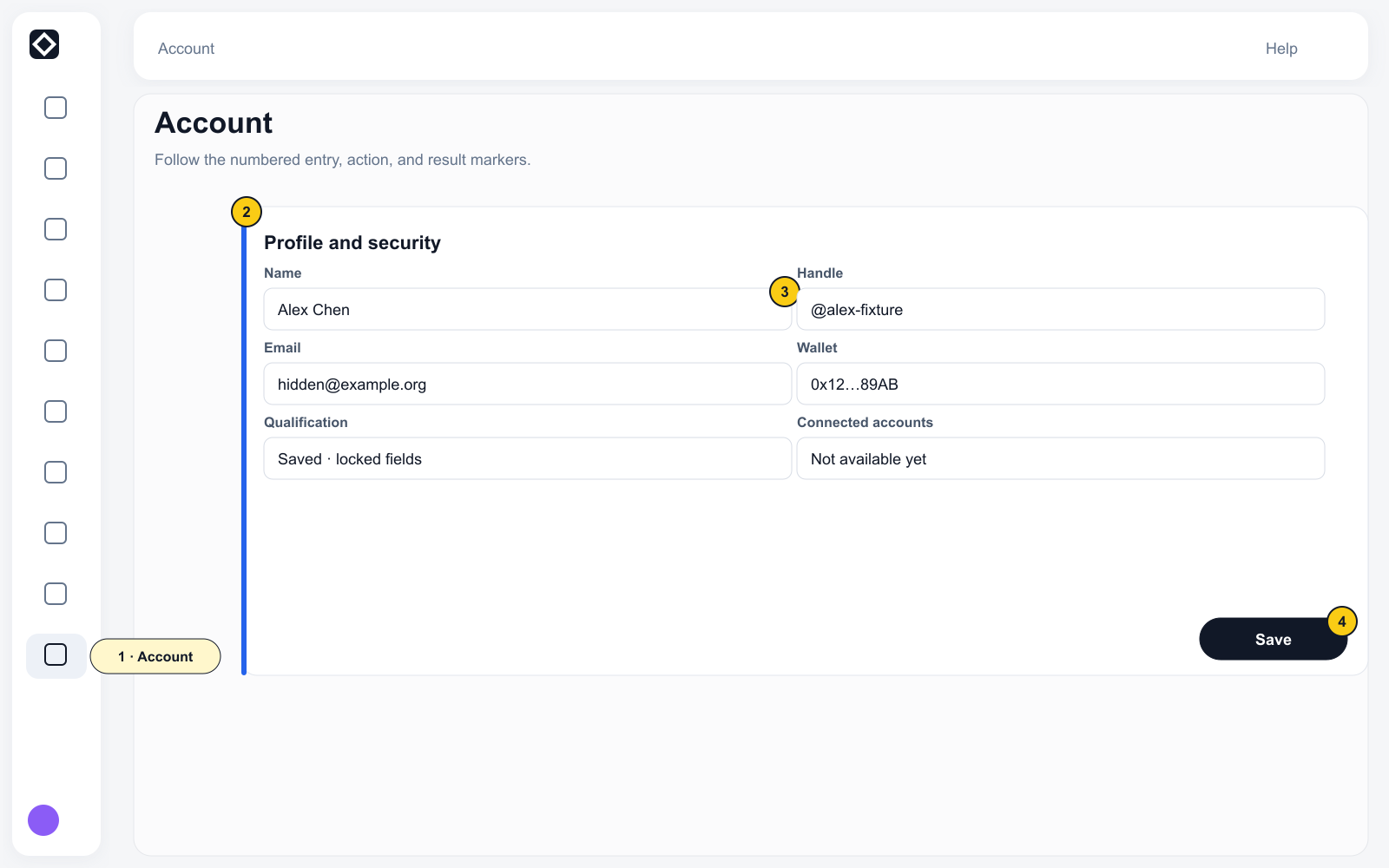
Use the profile menu to open Account, Agreements, or Sign out.
Account manages your avatar, Name / @handle, Email, linked wallet, X / Telegram, DID, Qualification, Reputation, and Agreements. X / Telegram linking is currently unavailable while the upstream providers are reorganized; wait for the page to reopen instead of retrying. Qualification can contain locked personal information and should never appear in a public screenshot.
When the account has an active handle, Account displays a Public Profile card. The public profile and Passport are separate.
Referral
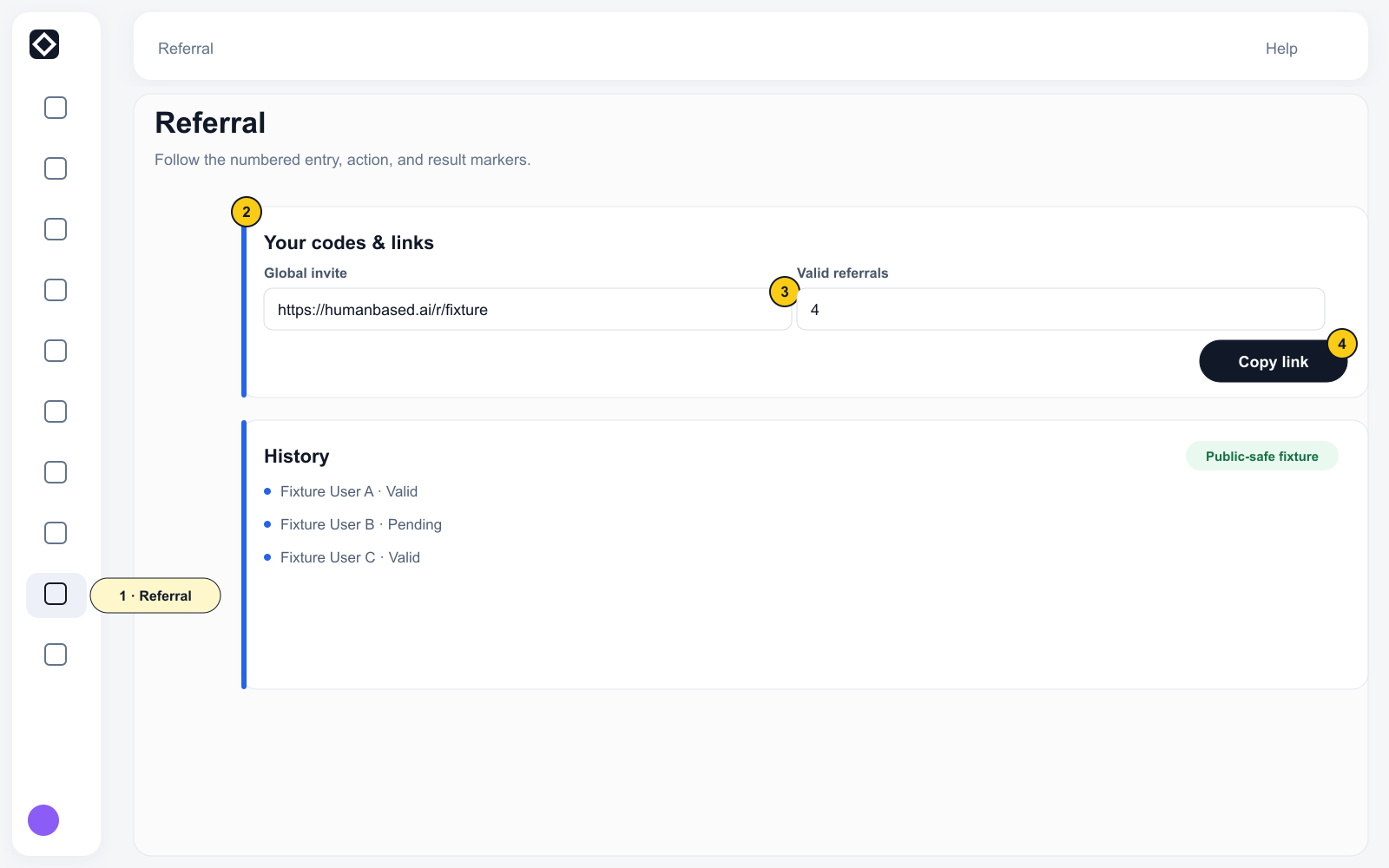
- Open Earn → Referral.
- Select Copy link under Your codes & links.
- Share the Global invite.
- Review Pending or Valid records in History.
A Referral becomes Activated only after the invited person registers and completes their first accepted contribution. When statistics are not available, the page shows Not available yet; do not infer a total.
Report a bug
Select the Report Bug icon at the lower right. Add a Title, Severity, Area, Description, and Screenshots. My Reports shows issues submitted by the current account.
A reviewer decides each report. A report that earns a reward pays USDC to your Earnings balance:
| Outcome | Reward |
|---|---|
| Accepted, Low severity | 2 USDC |
| Accepted, Medium severity | 3.5 USDC |
| Accepted, High severity | 5 USDC |
| Duplicate of an earlier report (first two only) | 0.5 USDC |
| Rejected | None |
- The reviewer can change the severity you chose. The reward follows the reviewer's severity, which My Reports shows on the decided report.
- One issue pays at most three reports: the first in full and the next two duplicates at 0.5 USDC each. Later duplicates of the same issue earn nothing, so check My Reports and the similar-issue list before you submit.
- Adding a +1 to someone else's report does not earn a reward.
- Bug reports do not change your reputation.
- Rewards come from a monthly fund. When the month's fund is used up, the reward shows On hold and is credited at the start of the next month.
- You get an email when a report is accepted or marked as a duplicate. Credited rewards can be withdrawn like any other balance; see Earnings and withdrawals.
Account security
Do not provide passwords, API Secrets, private keys, wallet recovery phrases, identity documents, private Campaign data, or Submission content in chat or shared documents.