Trust, Academy, Billing, and account
Manage organization verification, course requirements, funding, account settings, and notifications.
These pages provide the organization verification, training, and funding capabilities that can support the Campaign workflow.
Trust
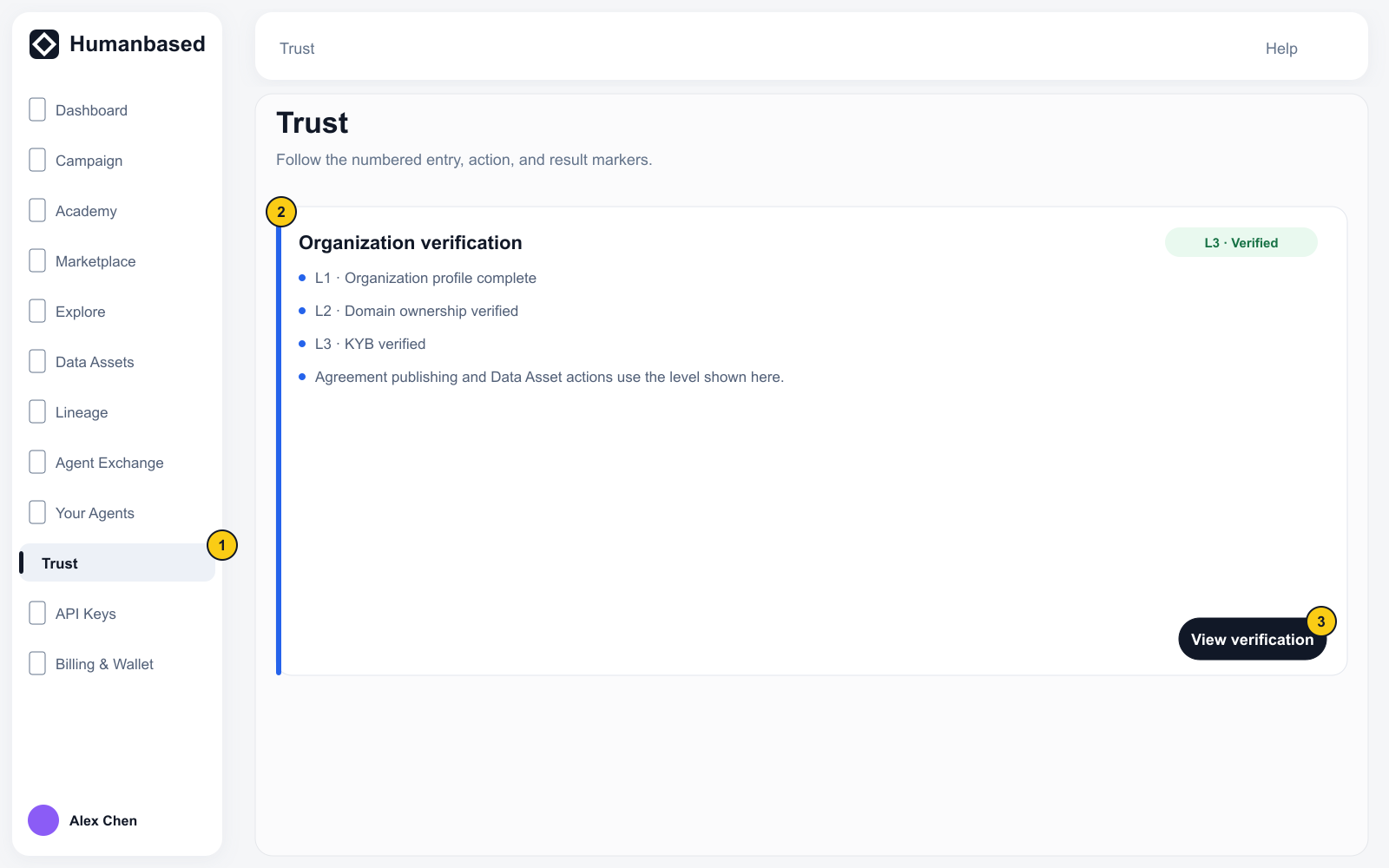
Open Settings → Trust to review organization verification, external evidence, Agreements, and capability unlocks. When evidence is required, use the action on the relevant card to open Verification.
Whether a capability is available depends on the verification state, control, and unlock condition shown by the page.
The paths to each verification level, what each one establishes, and the requirements for royalty compensation are covered in Organization verification and tiers.
Academy
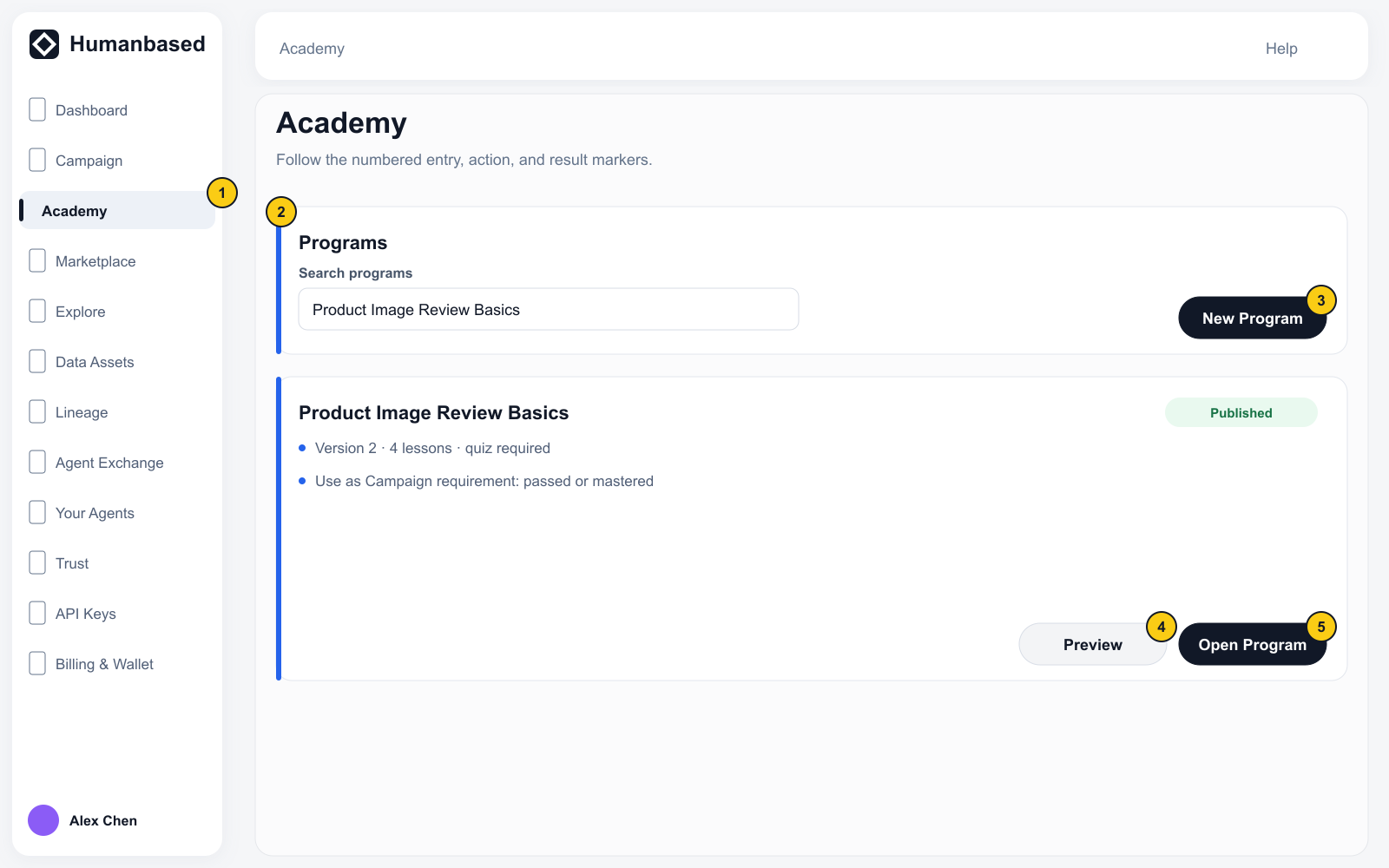
- Open Programs → Academy.
- Select New Program and enter the course information.
- Create a version and add video, reading, practice, or quiz Lessons.
- Save and Preview the content.
- Use Publish or Submit for review when provided by the page.
- Return to Campaign → Settings → Qualification requirements.
- Under Academy course requirement, select the course and the passed or mastered standard.
- Select Save requirements.
Review collects open-answer quiz Submissions that require grading across the Organization's courses.
Billing & Wallet
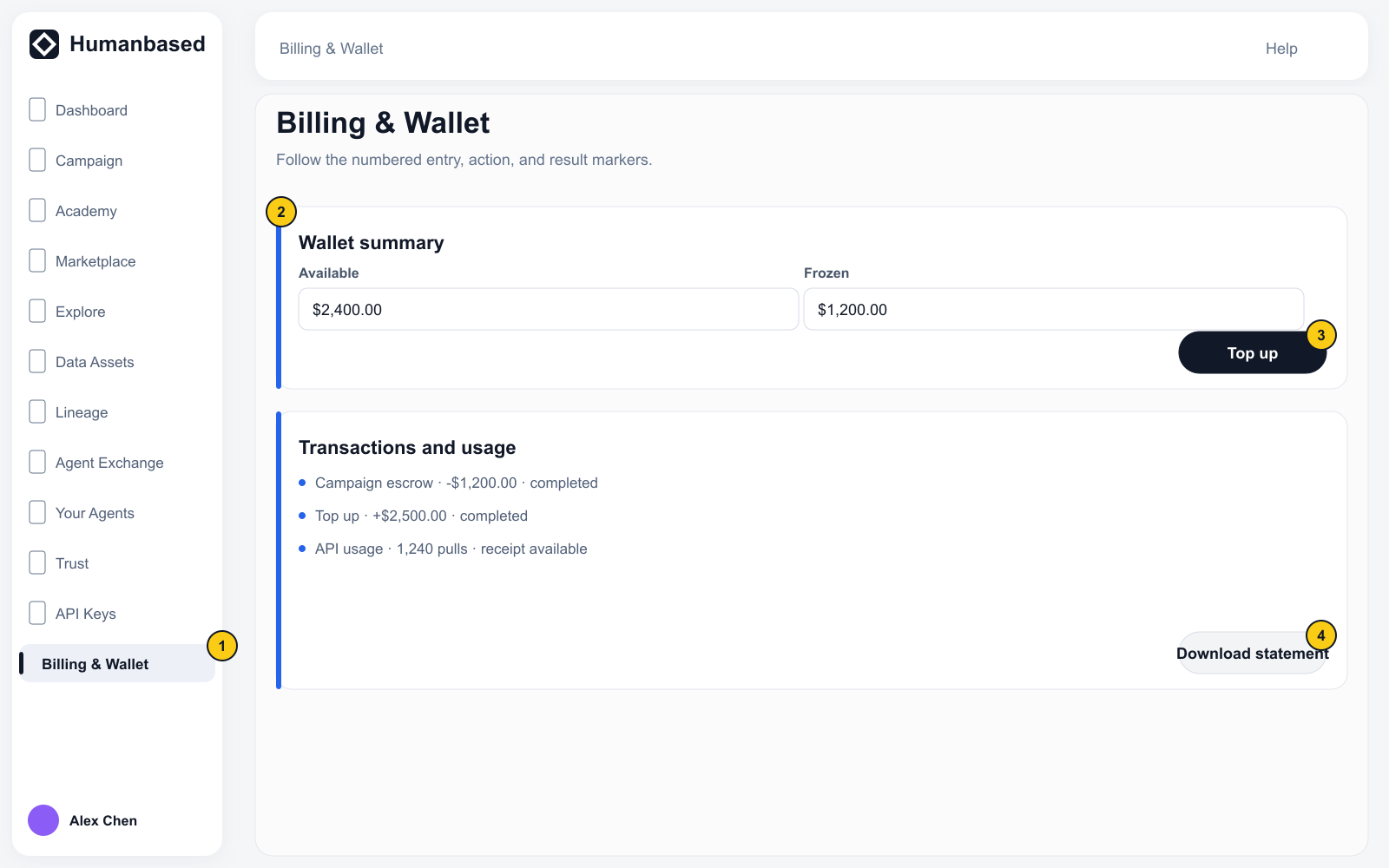
Billing & Wallet shows Available, Frozen, Total, Spent, Transactions, Data usage, Monthly statements, and earnings. Keep real balances, transaction references, and account details out of public screenshots.
What each figure means, which balance funds a Campaign, what converting USD to USDC does, and what is not available yet (USDC to USD, bank withdrawals, saved cards, auto-load) are explained in Billing, USD balances, and USDC. A Campaign is funded from available USD; you do not need a USDC balance to launch.
- Open Settings → Billing & Wallet.
- Review Available, Frozen, Total, and Spent.
- To add funds, select Top up, enter the amount, and complete the payment flow shown by the page.
- Use Transactions to review amount, time, state, and reference.
- Use Data usage to review applicable API pull or Agent step metering and receipts.
- Use Monthly statements to select a month and download an available statement.
The final state of a funding action is the state shown by Billing and its receipt. If a payment's outcome is unclear, check Transactions before paying again. Adding funds resolves only a balance shortage; it does not complete Pipeline, Eligibility, Dry-run, or other launch requirements.
Account and Referral
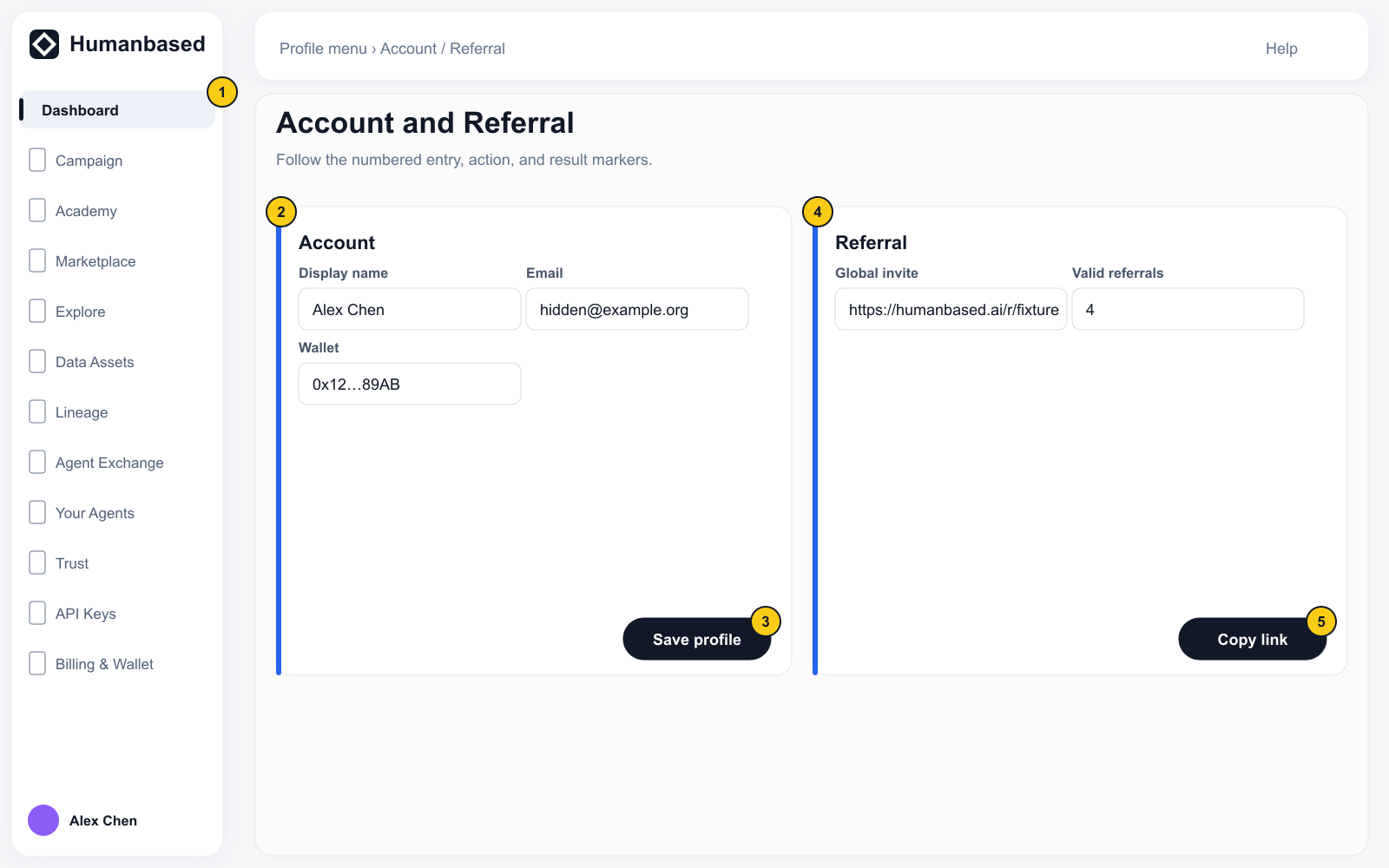
Open Account or Referral from the account menu in the lower-left corner. Account manages profile information, sign-in methods, Slack approval connection, and notification preferences. Referral shows the codes, links, and invitation records available to the account.