
Developer Guides
Monitor Submissions and data delivery
Review a Live Campaign, Submissions, Participants, and Dataset delivery state.
After a Campaign becomes Live, use Dashboard, Submissions, and Participants to monitor its operation.
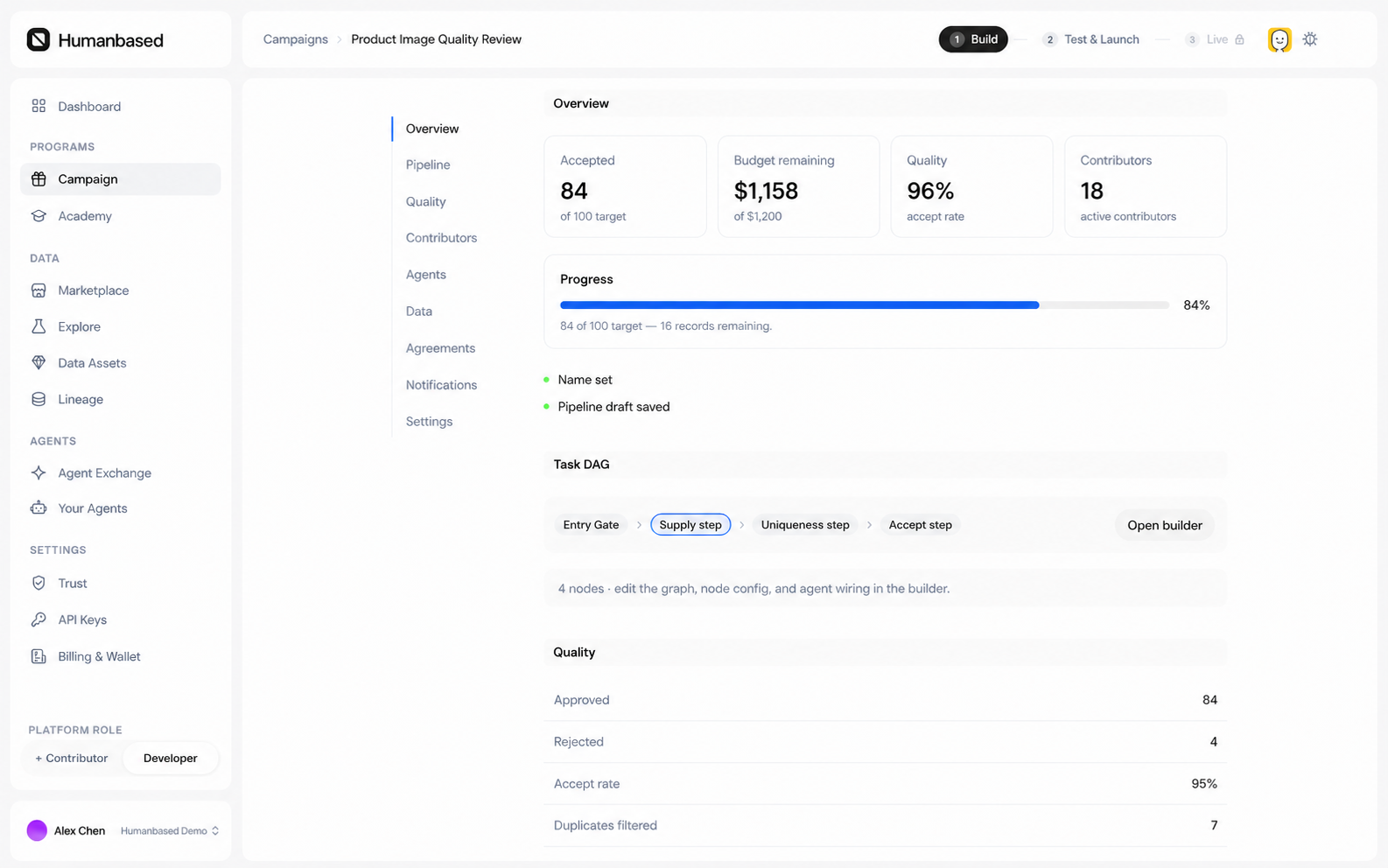
Review Campaign activity
On the Live Campaign, check:
- Records completed, Acceptance rate, In progress, and Stuck;
- Budget burn, Node health, Campaign flow, and Execution log;
- submitted, accepted, and rejected results; and
- the downstream state shown for each result.
Review a Submission
- Select Submissions or View submissions.
- Use the available status or keyword filters in the full list.
- Select a Submission.
- Review its steps, attempts, submitted content, state, and rejection reason in the right-side drawer.
- Select Lineage in the drawer to expand the processing nodes and evidence for that result.
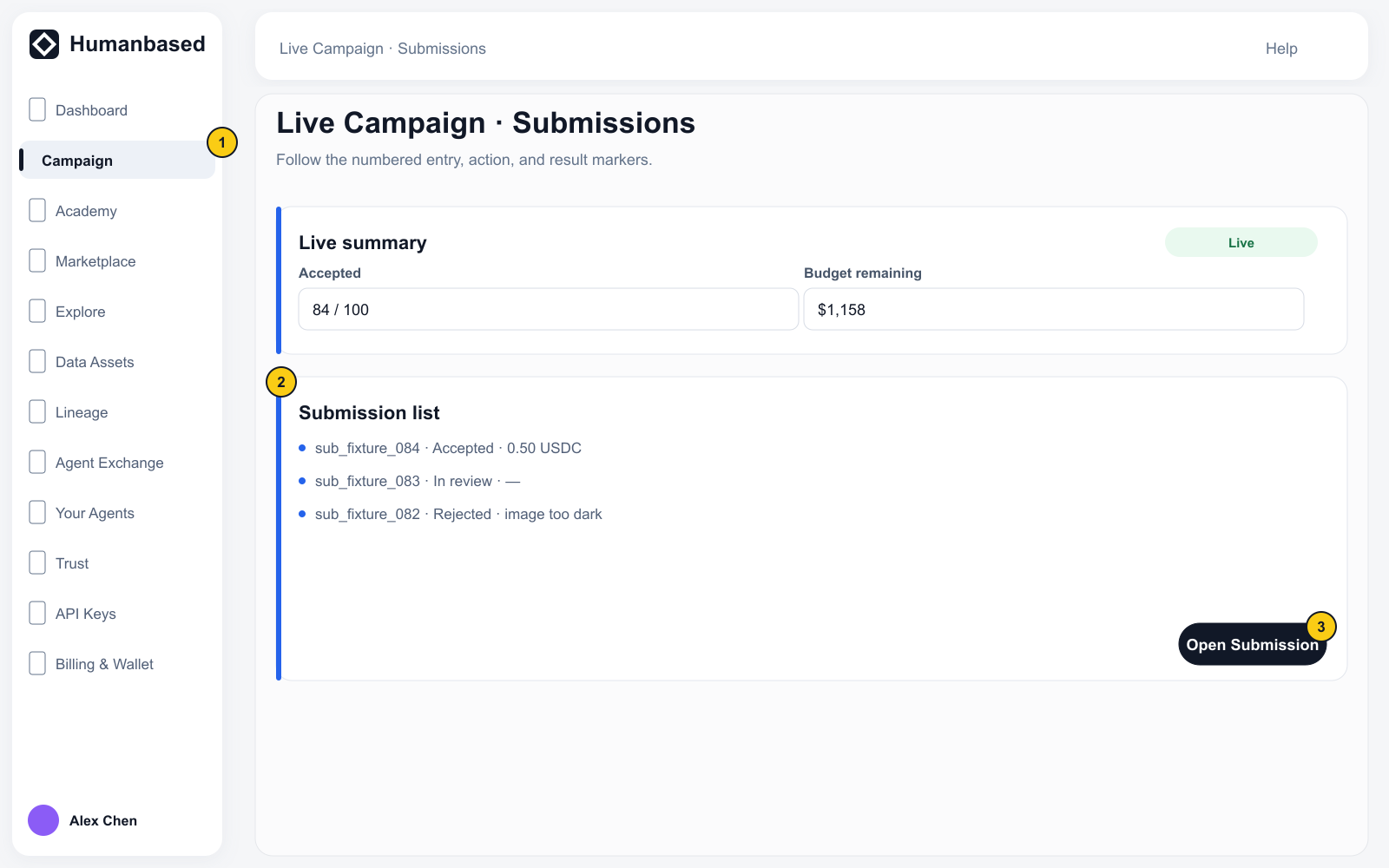
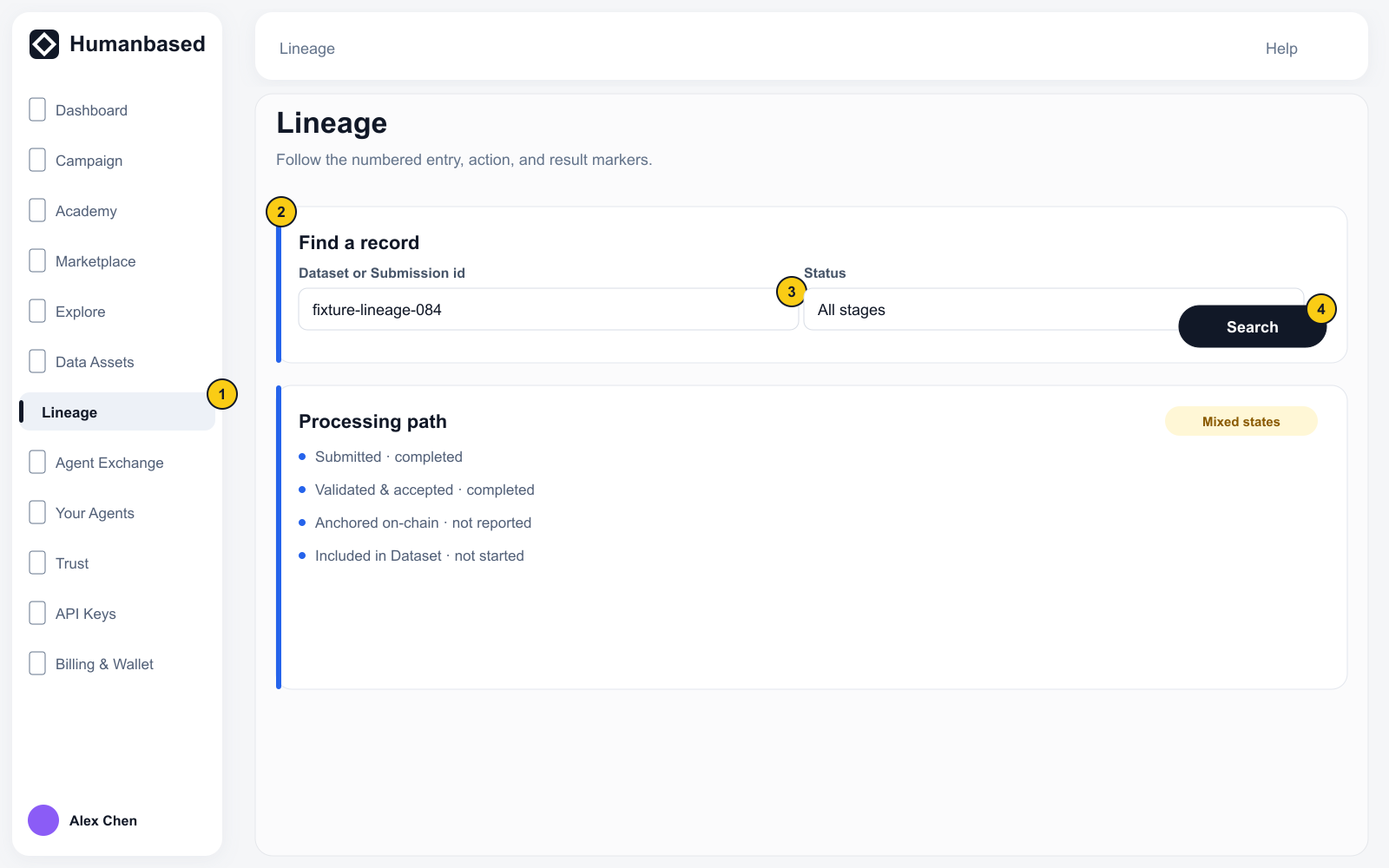
A submitted result does not become accepted automatically. It must pass the review and quality stages configured in the Pipeline.
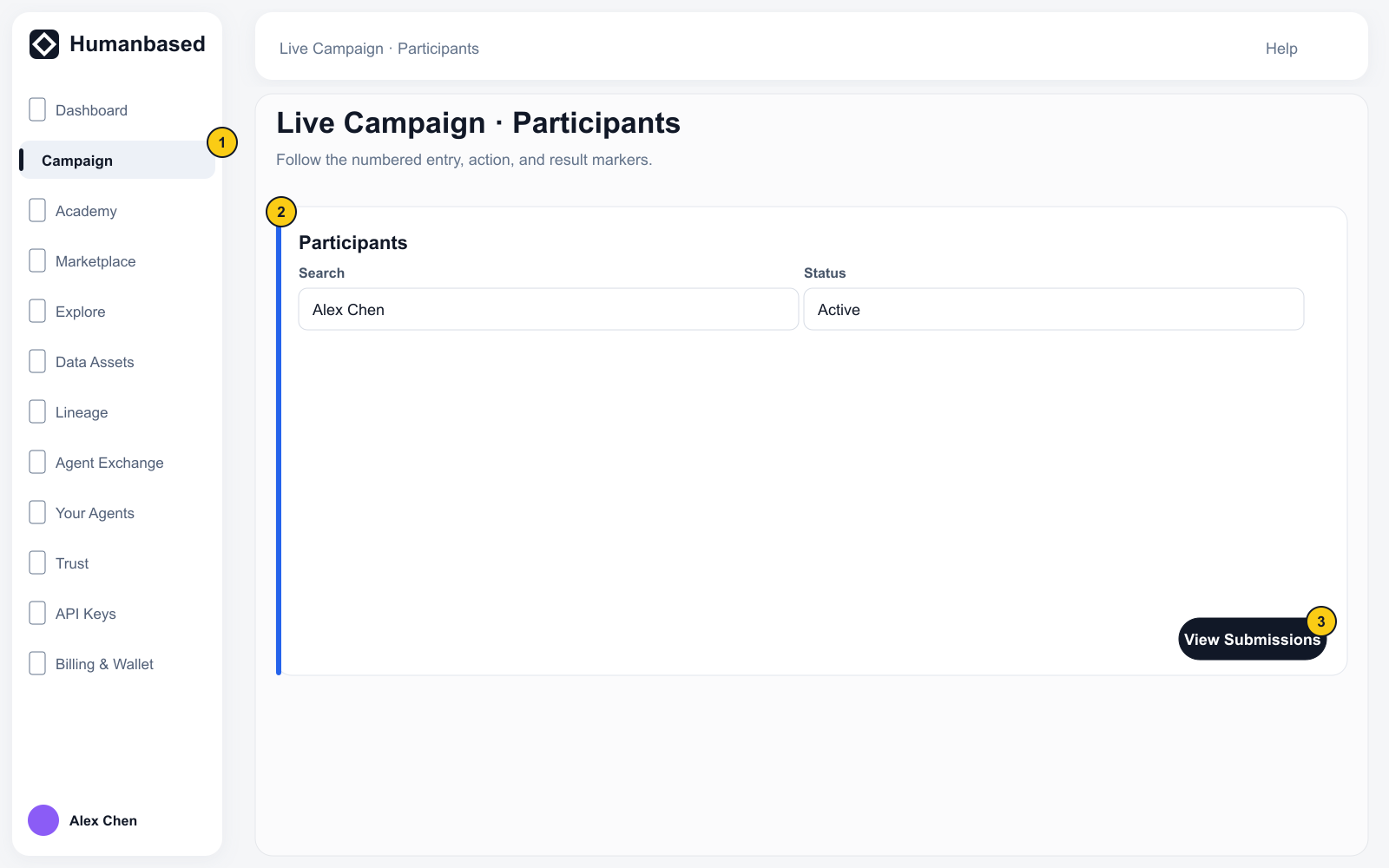
Review Participants
- Select Participants or View participants.
- Review enrollment, submitted, approved, rejected, and success rate.
- Select a row to review that Contributor's Submissions in the current Campaign.
- An Organization member with the required permission can use Blacklist. This removes the current enrollment and prevents the Contributor from joining or claiming another Task in that Campaign. Use Lift ban to remove it.
Confirm data delivery
Acceptance and Dataset delivery are separate stages:
Accept → Sink
Accept → ETL → Sink
If a result is Accepted but has not appeared in the Dataset, review its downstream state and confirm the Pipeline's ETL and Sink path.
Pause or end a Campaign
- Pause stops the issue of new Tasks. Select Resume after resolving the blocker.
- End stops new work and moves the Campaign into Closing while claimed Tasks, reviews, Rewards, and settlement are completed.
- Selecting Resume during Closing cancels the end request. After the queues drain, the Campaign becomes Finished and the remaining budget is processed.