
Organization and Dashboard
Create or switch Organizations and use Dashboard to enter the work that needs attention.
An Organization is the shared workspace that owns Campaigns, member access, Billing, Trust, Agreements, and organization data.
Create an Organization
When you first enter the Developer Portal:
- Enter the Organization name and URL slug.
- Select Create organization.
- Invite team members as needed.
- Open Dashboard to review the Organization state.
Creating an Organization does not launch a Campaign or automatically satisfy Billing or Trust requirements.
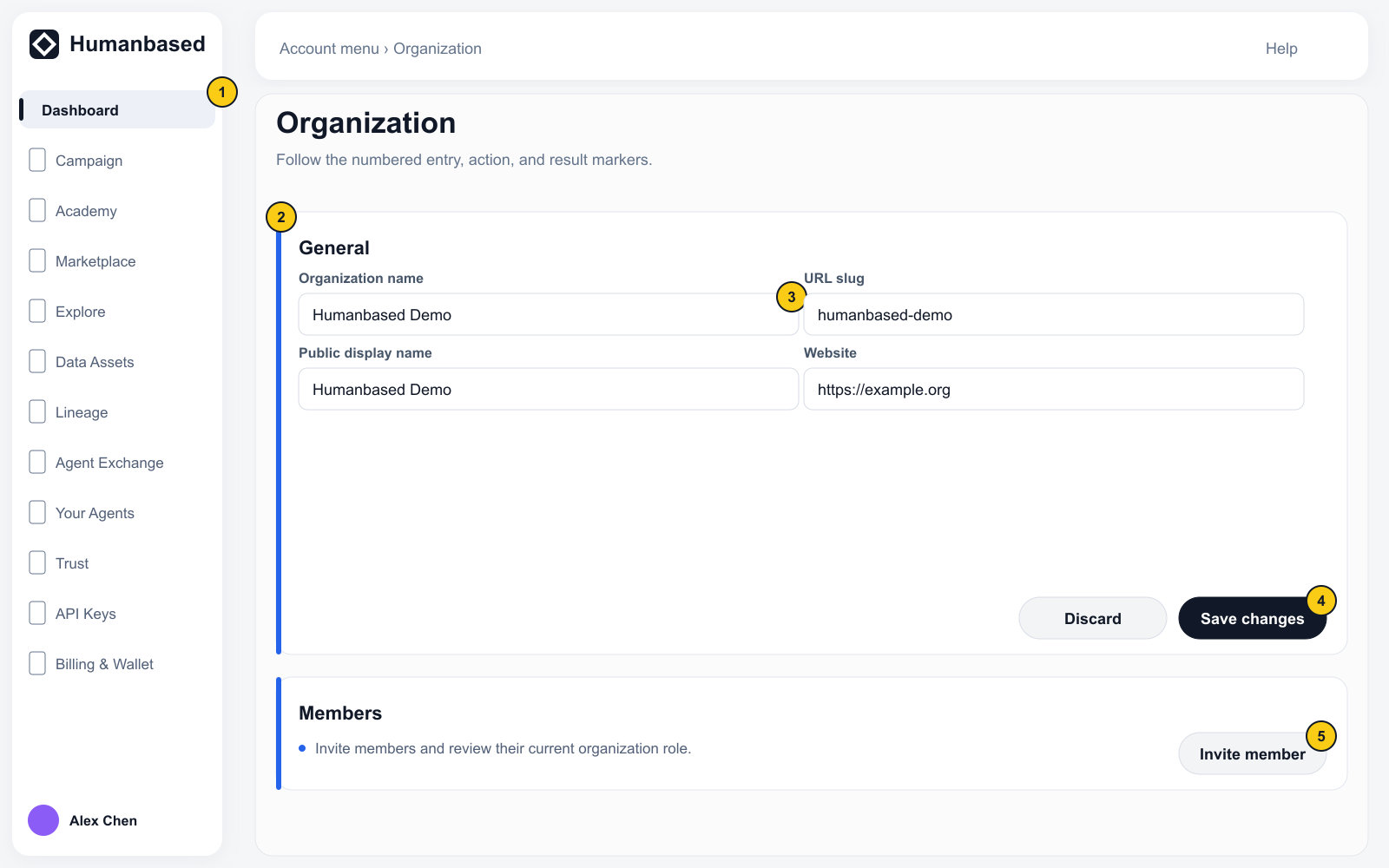
Manage members and organization details
Select the account and organization area in the lower-left corner, then open Organization:
- General: manage the Name, slug, Logo, billing email, backup email, and social links.
- Members: invite a Member or Admin by email, or generate an Invite link.
- Public Profile: edit the organization information shown to Contributors and use Preview to check it.
- Verification: review KYB, domain, and external verification states.
- Domains: Owners manage allowed domains, domain verification, and domain-based joining.
Join requests submitted through an Invite link appear in Members. An administrator selects a role, then chooses Approve or Reject.
Use the complete Organization image above to keep the lower-left account entry, page title, editable fields, save action, and Members entry in view together.
Use Dashboard
The Developer Portal opens on Dashboard. It shows Balance, Active API keys, Subscriptions, Trust, Getting Started, and items that need attention.
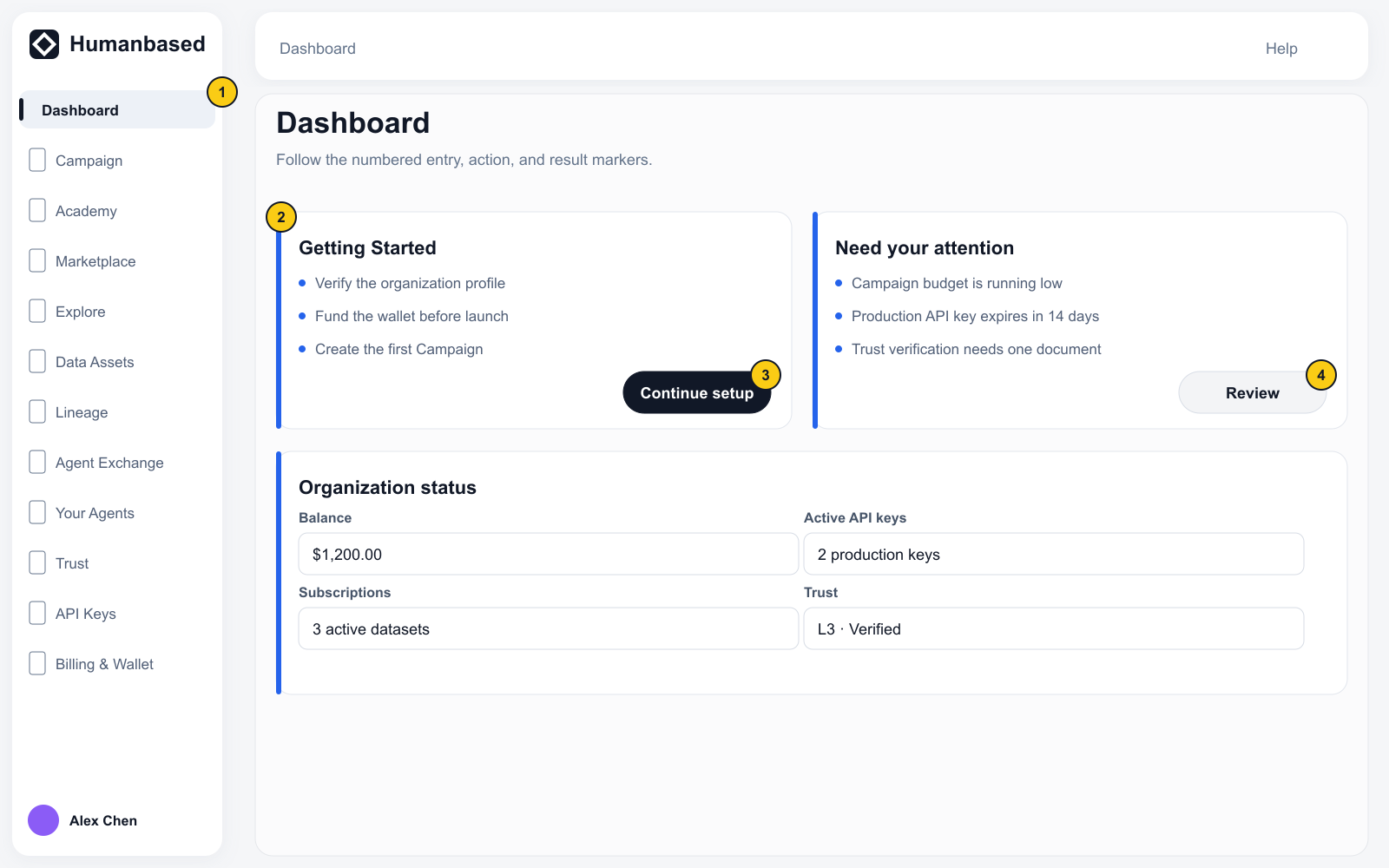
- Review Getting Started and Need your attention.
- Select a status card or action item to open the relevant page.
- After resolving a verification, funding, subscription, or Campaign issue, return to Dashboard and confirm that the state has changed.
Whether a capability is available depends on the controls, status, and unlock conditions shown on its destination page.