
API keys and Agents
Create and protect a production API key, and use a wired Agent in a Campaign Pipeline.
An API key provides access to production data allowed by its scopes. An Agent can process or evaluate data inside a Pipeline.
Create a production API key
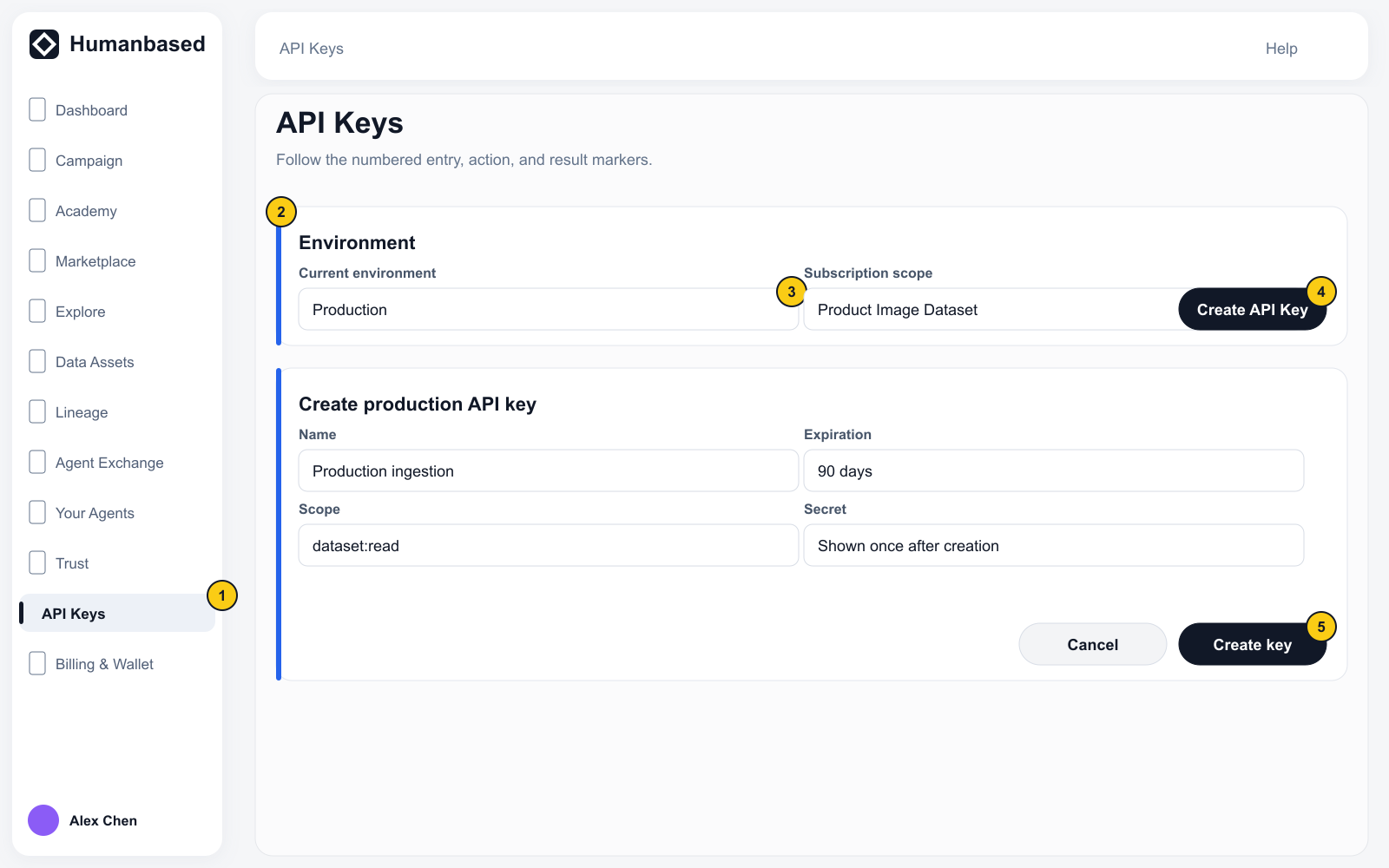
- Open Settings → API Keys.
- Select the Production environment.
- Select Create API Key.
- Enter the Name and Expiration.
- Select the scopes the integration needs: a Subscription scope for data delivery, a Campaign scope to read or change Campaigns from code.
- Create the API key.
- Immediately copy and securely store the complete Secret.
The complete Secret is displayed once. Do not place it in application code, chat messages, screenshots, or shared documents.
A Sandbox Key uses simulated data and cannot authenticate to the production API. A production key grants exactly what its scopes name — Subscription scopes decide which data it may pull, and Campaign scopes decide which Campaigns it may read or change. Scopes do not imply one another, so a key granted only data access cannot read a Campaign. See Campaign API.
Rotate or revoke a key
If a key may have been exposed:
- Create a replacement key.
- Update the applications that use the old key.
- Confirm that the new key works.
- Revoke the old key.
Revocation cannot be undone.
Wire in an Agent
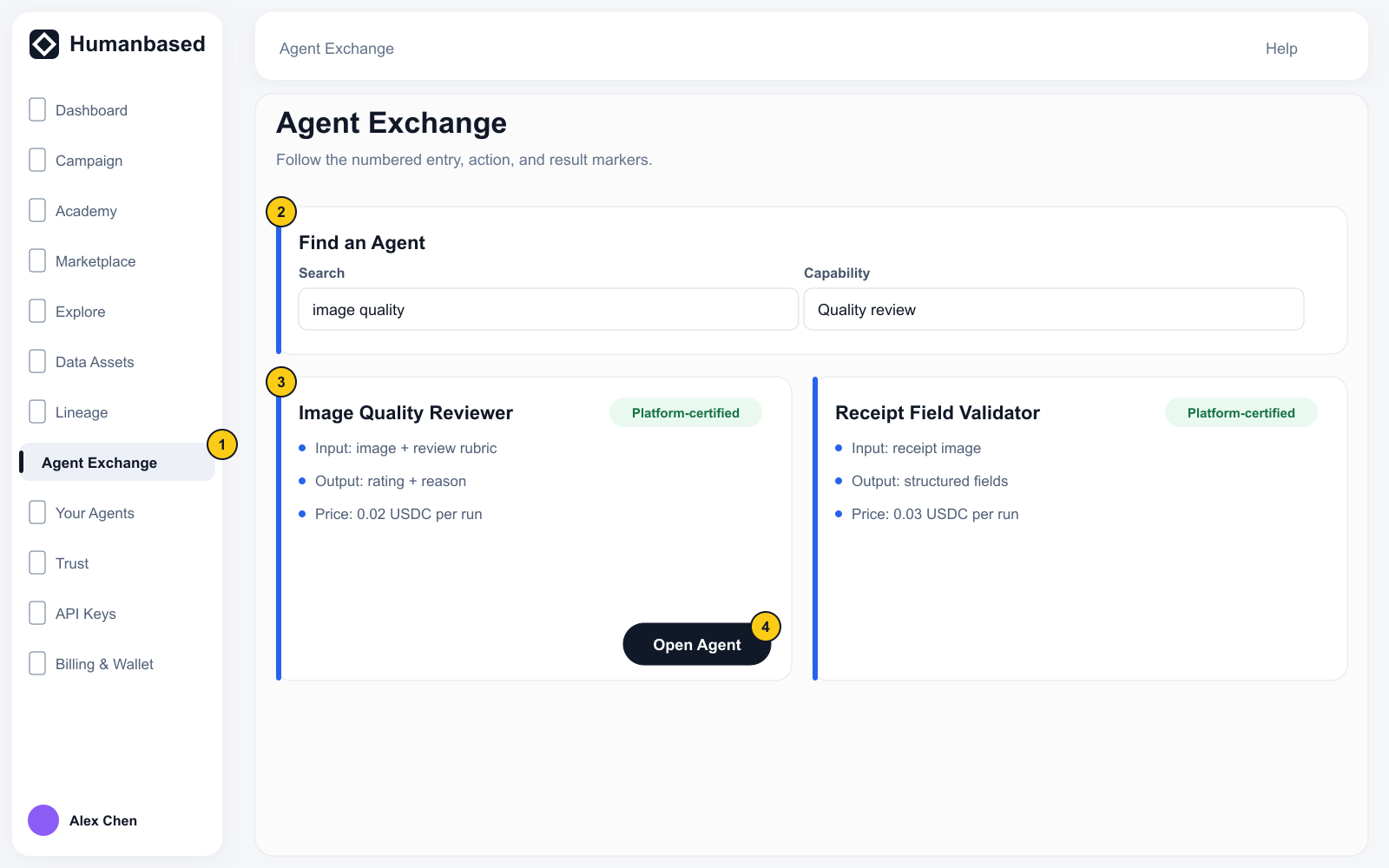
- Open Agents → Agent Exchange.
- Find the capability you need among the currently visible Humanbased platform-certified Agents.
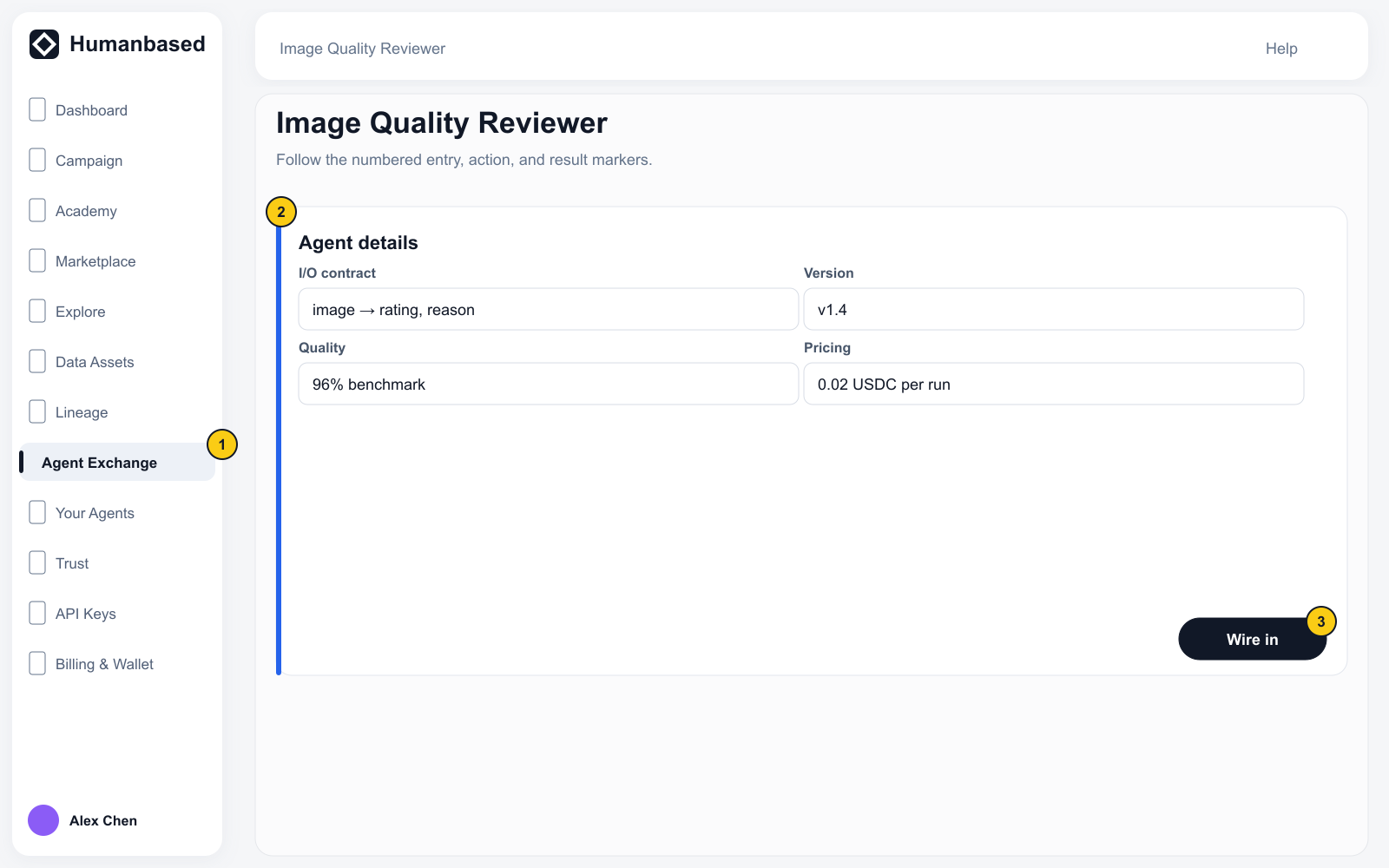
- Open the Agent card and review Overview, I/O contract, Pricing, Quality, Reviews, and Versions.
- Select Wire in.
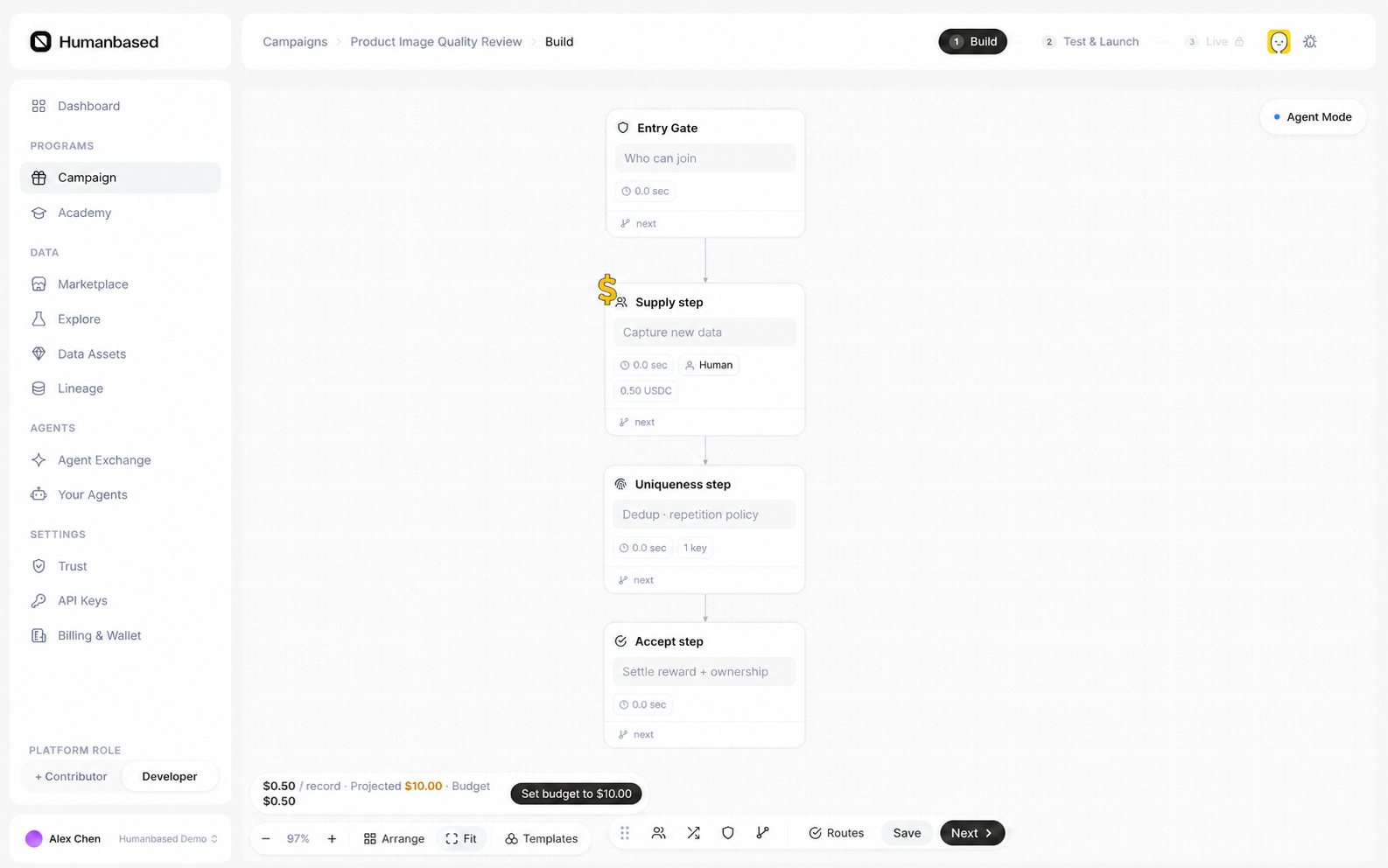
- Return to Campaign → Open builder.
- Add Agent Task from Transform & Safety.
- Select the wired Agent, enter Instructions, Checks, and the Minimum rating, then save and connect the node.
Your Agents shows the Agents owned or wired by the Organization, their state, and available usage information.
Third-party Agent listing is not open. List an agent is currently disabled, so do not use this page as a third-party publishing workflow.
For request authentication, see Authentication and environments.