
Developer GuidesBuild and launch
Create and configure a Campaign
Create a Draft and complete its work description, budget, participant information, and notifications.
A Campaign defines the data to produce, the work Contributors complete, participation requirements, Rewards, review rules, and final delivery path.
Before you begin
Define:
- the required data or result;
- the instructions Contributors will follow;
- Form fields and acceptance criteria;
- participation requirements;
- Rewards, Task limits, and expected volume; and
- the Campaign budget.
Create the Draft
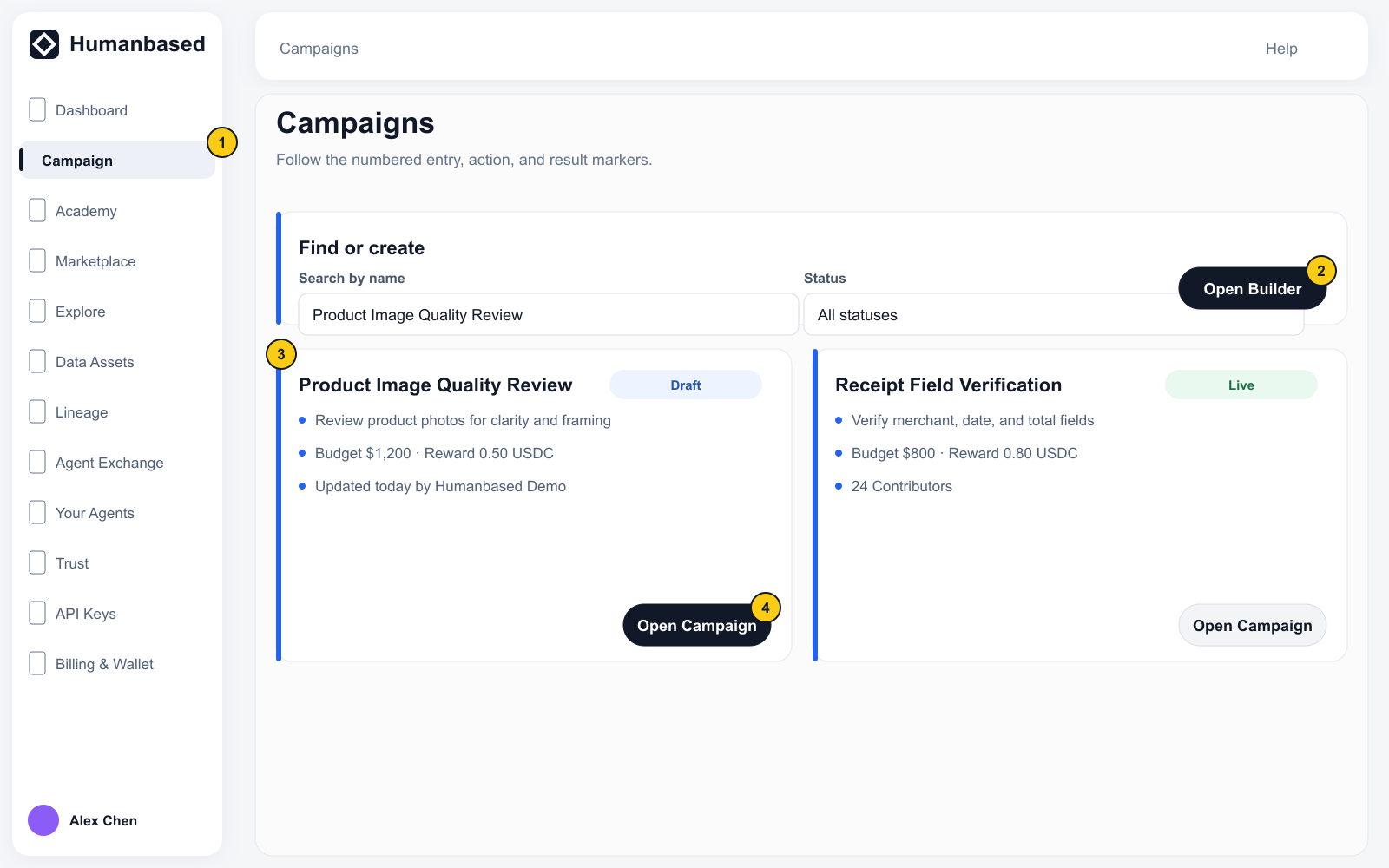
- Open Programs → Campaign.
- Select Open Builder in the upper-right corner.
- Humanbased creates a Draft and opens its workspace. Replace the temporary name in Settings → Identity & brief before configuring or sharing the Campaign.
A Draft does not issue active Tasks to Contributors.
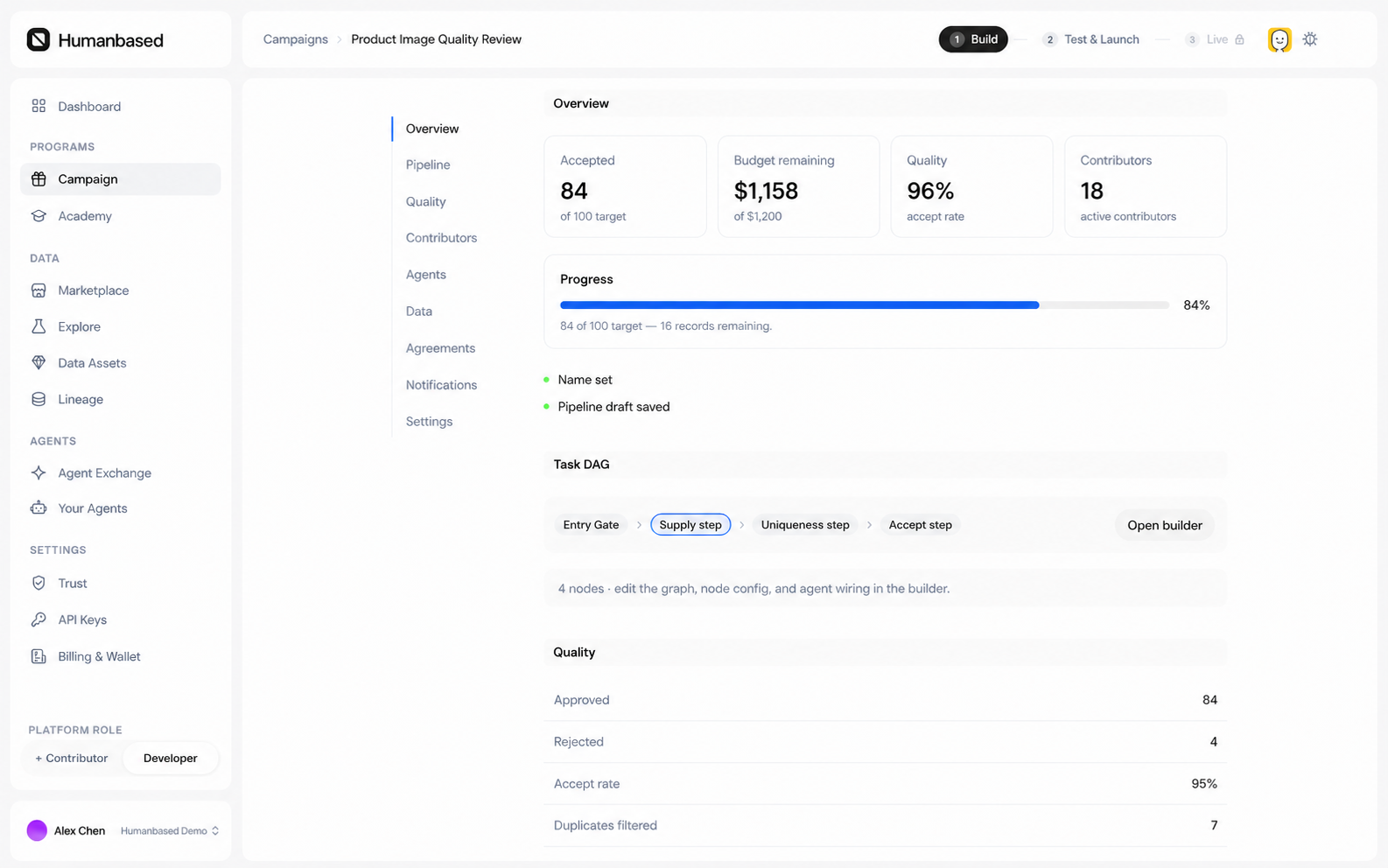
Complete Campaign Detail
Campaign Detail includes anchors for Overview, Pipeline, Quality, Contributors, Agents, Data, Agreements, Notifications, and Settings.
Identity & brief
- Open Settings → Identity & brief.
- Upload the Cover image.
- Enter the Name and Description / Brief.
- Add a Detailed description and Tutorial videos when the work needs more instruction.
- Select Save changes.
Name, Description, and Cover image must be resolved before Launch.
Other settings
- Budget: set the budget for a Draft. A Live or Paused Campaign can only increase it.
- Brand & theme: set the Accent color, Logo URL, Density, and Contributor instructions.
- Qualification requirements: set region, education, experience, Skill, language, and Academy course requirements. An empty field does not create that requirement.
- Members: review Campaign members and roles.
- Notifications: connect or manage Slack and Webhook notifications.
Completion state
The Campaign remains a Draft, but Identity & brief is saved and the page no longer shows the corresponding unsaved or required-field blocker.
Next: Build a Pipeline